Torki Code
Troubleshooting Torki Code
Overview
When something goes wrong in Torki Code, the app usually says what happened and what to do, in a line in the conversation, a toast at the bottom right, or a warning in the status bar. This article lists those messages with what to do about each, followed by the known issues in the current version and how to reach us.
What it needs
Torki AI for Mac. Some fixes below depend on the version you have. Check it under Torki AI → About Torki AI in the menu bar, or in Code Settings → Workspace → Version.
Get started
1. Read the message
Most failures in the conversation come in two lines: what happened, then what to do. Find the first line in the sections below.
2. Check the status bar
A warning on the left of the status bar means Code cannot talk to Torki at all: Not signed in or Model unreachable. Fix that first; nothing else will work until it is gone.
3. Try once more
Many failures are momentary. Sending the same message again is safe: whatever Torki already wrote to your files is still there, and nothing you typed is lost.
4. Still stuck? Contact us
Email support@torkiai.com — Getting help below lists what to include.
Signing in and connecting
- Not signed in (status bar) — click it to go to Home, then sign in.
- Model unreachable (status bar) / "Torki could not reach the model" — check your internet connection. If it is fine, Torki's service may be busy or down; wait a few minutes.
- "Torki could not be reached." / "Check your connection, then send that again." — as it says.
- "Torki could not reach the server. Check your connection." — the same: check your connection, then try again.
- "Your session has expired, so Torki could not send that." or "Your session expired. Sign in again on Home." — press ⌘1 for Home, sign in, come back with ⌘2 and send the message again.
- "Torki is at capacity right now." — wait a few seconds and send again.
- "Torki failed while answering. This one is on our side, not yours." or "The server could not complete that. Try again in a moment." — try again shortly. If it keeps happening, contact us.
- Account details unavailable on the account chip — your name and plan could not be loaded. You are still signed in and everything else works.
An answer stopped part-way
- "The connection to Torki dropped before the answer finished." — send it again. What Torki already did to your files is still there.
- "Torki took too long to answer and the request was dropped." — send it again. If it keeps happening, ask for less in one go.
- "The answer stopped before it was finished." — send it again.
- "Torki was cut off while writing a file, so the change was incomplete." — send it again, or ask for the file in smaller pieces.
- "Torki tried to write more than this workspace allows in one go." — ask for the change in smaller pieces.
- "Torki used its whole output budget for that step and never made a tool call, so that step applied nothing." — send it again, or ask for one smaller piece of the work.
- "The model returned an empty response twice in a row, so this turn stopped early." — send the request again, or switch mode (Pulse, Orbit, Stellar or Cosmos).
- "Torki stopped part-way through that." — send it again; nothing you typed was lost.
Limits
- "You have used all your messages on …" — the card shows how many you used and when they reset. "Your work is saved. Send this again once your messages reset." See … opens the plans. Each request in Code counts as one message, however many steps it takes. See Usage, Plans and the Context Meter.
- "This task has used all 200 model steps one message allows. Send a new message to keep going." — a very long task reached the limit for one message. Send something like "carry on" to continue; it counts as a new message.
- "Stellar is on Lite and above." (or Cosmos) — that mode needs a paid plan. Use Pulse or Orbit, or upgrade.
- "This conversation has grown past what Torki can hold at once." — Torki is condensing the conversation. Send your message again when it finishes. For a fresh start, press ⌘N for a new session.
- "Condensing stopped — nothing was changed." / "Could not condense the thread. Nothing was changed." — click Condense now to try again. "Torki is working — stop it first, or wait." means a task is still running.
Folders and files
- "Open a folder first." — open one with ⌘O. Conversations with no folder open are not saved.
- "… exists, but macOS is not letting Torki read it." — open System Settings → Privacy & Security → Files and Folders and turn on the folder for Torki. If Torki is not listed there, quit and reopen it, then try the folder again.
- "Torki could not save … because macOS did not allow it." — the same setting. If the file itself is locked, unlock it with Get Info in Finder, then save again.
- "That path is outside the workspace." — Torki only works inside the open folder, by design. Open the folder that contains the file. See Guarded Mode and Privacy.
- "… belongs to …, not to the open project, so it was not saved." — a tab from a folder you closed. Copy the text you need into this project.
- "Torki does not open private-key or credential files." — files such as
.env,.pemorid_rsaare never opened by Torki, by design. Edit them in another editor. - "File is too large to open here." — the editor opens text files up to 2 MB. "Binary file — nothing to show as text." — the file is not text.
- "That file no longer exists." — it was moved or deleted; press Refresh in the Explorer.
- "… changed on disk but you have unsaved edits" — Torki changed a file that you also have unsaved edits in, so the tab was not reloaded. Copy what you need before you save over Torki's change.
Commands and git
- "Operation not permitted" from
brew install,npm install -g, or a git branch, tag, stash, pull or push command Torki ran — on a Mac, commands Torki runs can only write inside your project (but not its.gitfolder), temporary folders and package caches. Switch or create branches with the branch name in the status bar, use Pull and Push in Source Control, and run anything else yourself in the terminal in the bottom panel, which is not confined. - "Torki confines commands so they cannot write to .git. This is not a broken repository and not a stale lock…" — with git messages such as "Unable to create '…/.git/index.lock': Operation not permitted". Do not delete the lock file or change permissions; it will not help. Stage and commit in Source Control (or let Torki use its git tools), switch or create branches with the branch name in the status bar, and run tags and stash in the terminal. See Source Control and Git.
- "The command ran past its time limit and was stopped." — commands Torki runs stop after 120 seconds by default. For a dev server or a watcher, ask Torki to start it in the background instead.
- "6 background processes are already running. Stop one first." — ask Torki to stop a server it started.
- "Git could not read this folder" — git's own sentence follows; press Refresh after fixing it.
- "Torki will not touch this repository" — the repository's settings try to run commands or point its files somewhere else. Torki leaves it alone on purpose. Use git in the terminal.
- "This folder is not a git repository. Initialise one in Source Control." — from the branch picker. Click Initialise a repository in Source Control first.
- "name" is not a branch name git accepts. — use letters, digits and
._/-, and do not start the name with a hyphen. - Git's own "Your local changes … would be overwritten by checkout", when you switch branch — you are still on your branch and nothing changed. Commit your changes, or put them aside with
git stashin the terminal, then switch. - "Not possible to fast-forward" after Pull — your branch and the remote have both gained commits. Pull only fast-forwards, so nothing changed. Merge or rebase in the terminal, for example
git pull --rebase. - An authentication error after Push or Pull — Pull and Push do not ask for a git password. If the remote's address starts with
https://github.com, rungit pushorgit pullin the terminal, which uses your usual git sign-in.
Terminal
- "Open a folder before starting a terminal." — the terminal starts in the open folder, so open one first.
- "Too many terminals open (max 8)" — close one with Close terminal.
- "The terminal could not start." — press Start terminal again. If it keeps failing, quit and reopen Torki.
Projects on a server
These come from the location chip under the message box (Local, or the server's name) and from working in a project on a server. Torki uses this Mac's own ssh, so the first test is always whether ssh to that server works in Terminal. For how server projects work, see Working on a Project on a Server.
Connecting
- "server refused the login: this Mac offered no key it accepts (…)" — Torki uses the same keys as Terminal. If you connect in Terminal with a name from
~/.ssh/config(ssh name), choose that name in the server list rather than adding the address again. - "server refused the login (…)." — the user name or password was not accepted. Check the user in Add a server…, or in your
~/.ssh/config. - "Could not find server: …" — the address could not be looked up. Check the spelling.
- "Could not reach server: …" — the connection was refused or timed out. Check the address and port, your network or VPN, and that the server is running.
- "server's identity was not accepted, so Torki did not connect (…)." — you answered Cancel to "Is this the server you meant?", or the server's key does not match the one in
~/.ssh/known_hosts. If the server was rebuilt, connect once in Terminal to sort out its key. - "server did not answer in time." — try again. If it keeps happening, check the server is not overloaded.
- "Torki needs python3 on server to read and write files there, and it is not installed." — install
python3on the server. Nothing else needs installing. - "Could not start ssh (…). Is OpenSSH installed?" — this Mac's
sshcould not be found or started. Check thatsshworks in Terminal. - "host hosts code, it is not a server you can open folders on…" — GitHub, GitLab, Bitbucket and Azure DevOps are not servers you open folders on. Run
git clonein the terminal and open the folder it makes. - "Sign in to Torki to save servers." — saved servers belong to your Torki account. Sign in on Home first.
- "That server is not in your list any more." — it was removed. Add it again with Add a server….
Opening a folder
- "This is the whole home folder. Pick the project folder inside it." or "… is the whole home folder. Pick the project folder inside it." — Torki will not open your whole home folder, or
/, as a project. Open the project's own folder. - "Give the folder on the server as a full path, like /home/you/project." — type a path that starts with
/. - "N files is more than Torki mirrors from a server (50000). Open a subfolder of the project instead."
- "N files are over 20 MB and stay on the server only" — not an error. Those files are not copied to this Mac, so the Explorer, Search and Torki's file tools do not see them.
.git,node_modules, virtual environments and build folders such asdistandbuildstay on the server too.
Saving and syncing
- "Saved on this Mac, but it did not reach the server (server): …" — your change is on this Mac only. When the connection is back, save the file again; a command or a git step also sends waiting changes first.
- "Could not send your latest changes to the server first (server): …" — Torki sends your changes before every command, test or git step, and this time could not. Nothing ran. Check the connection, then try again.
- "N files changed here and on the server — the server’s version is open; yours is kept beside it as .torki-local" — the same file changed in both places. Open the
name.torki-localfile beside it, copy back what you need, then delete it..torki-localfiles are never sent to the server. - A change made on the server does not show yet. Changes made there by something else arrive after Torki runs a command, shortly after a server terminal goes quiet, after a Pull, a branch switch or a discard, or when you choose Refresh from the server in the location chip's menu.
- Full auto asks before every command. On a server, commands are not confined, so Full auto asks before each one until you choose Trust this server in the location chip's menu.
Attachments
- "Up to 8 files at a time" — send the rest in the next message.
- "… had not finished being read, so it is not in this message." — wait for the chip to stop saying "Reading…", then send again.
- "… is …, and an attached PDF is read up to 12 MB." — save the PDF inside the project folder and ask Torki to read it by name; it can read up to 64 MB from there.
- "… is a HEIC photograph, and the part of Torki that opens one is missing from this copy of the app." — export it as JPEG or PNG, or download Torki again from torkiai.com to restore the missing part.
- "Torki cannot read …: it is not a text file." — the file type is not supported. Old Office files (
.doc,.xls,.ppt) cannot be read either; save them as.docx,.xlsxor.pptxfirst.
Updates and accounts
- There is no "Check for updates" button. Torki checks a short while after it opens and every few hours, downloads the update by itself, and installs it when you quit. When it is ready, a card appears above your account in the sidebar; click it, then Restart and update.
- A fresh install from the downloads page may start on an earlier version and then update itself the same way. If the attachment features or anything in these articles are missing, leave Torki open for a few minutes while it downloads the update in the background, then restart when the update card appears.
- "Torki did not restart" — the update installs the next time you quit with ⌘Q.
- "… could not be cleared. Restart Torki before continuing." or "Could not clear the previous conversation. Restart Torki before continuing." — after switching accounts, quit and reopen Torki before you carry on.
Known issues
These are problems we know about in the current version, with what to do meanwhile.
- Torki itself cannot create or switch branches, tags or stashes on a Mac, and cannot pull or push. Switch or create branches with the branch name in the status bar, use Pull and Push in Source Control, and run tags and stash in the terminal. See Source Control and Git.
- If Push fails to sign in to a remote whose address starts with
https://github.com, rungit pushin the terminal instead, where your usual git sign-in applies. - Clone from GitHub is listed but not switched on yet. Choosing it says "GitHub sign-in is not set up in this build of Torki yet. You can still clone with git in the terminal, or open a folder that already holds a clone." Run
git clonein the terminal, then open the folder. - Projects on a server: changes made on the server by something else arrive after the next command, when a server terminal goes quiet, or on Refresh from the server, not straight away; a file changed in both places is kept as
.torki-local..git,node_modules, build folders and files over 20 MB stay on the server. Full auto asks before each command there until you choose Trust this server. Torki's tools for finding where a function is defined, what calls it and what a change would affect are not available there. A server project is not reopened when Torki starts; reopen it from the location chip's menu. See Working on a Project on a Server. - The Explorer's delete question says "This cannot be undone." A file or folder of 8 MB or less can in fact be brought back with Undo a file change; see Undoing a Change.
- Stop does not reach a program that detaches itself, such as a daemon. Stop it in the terminal or in Activity Monitor.
- Stop does not take down a file approval card. Press Deny, and the task ends.
- Very large binary output from a command can lose its end. Ask Torki to write the output to a file instead.
- A conversation started in the first seconds after signing in can be missing from Sessions. It is still saved on your Mac and nobody else can see it.
- On a shared Mac, if someone signs in while the previous person's reply is still running, a fragment of that reply can flash on screen and a command it started keeps running. Stop any task before switching accounts.
- Home: with the sidebar collapsed, error messages can be hidden; press ⌘B.
- Horizon: you need to sign in to sites again after relaunching. Words typed in the address bar open a Google search in your normal browser, without saying so.
Getting help
Email support@torkiai.com. To help us answer quickly, include:
- Your Torki version (Torki AI → About Torki AI) and your macOS version.
- What you asked Torki to do, and the permission mode you were in.
- The exact message you saw, copied or as a screenshot.
- If it helps, a screenshot of the Output tab in the bottom panel (⌘J), which logs what Torki did, including failed git calls.
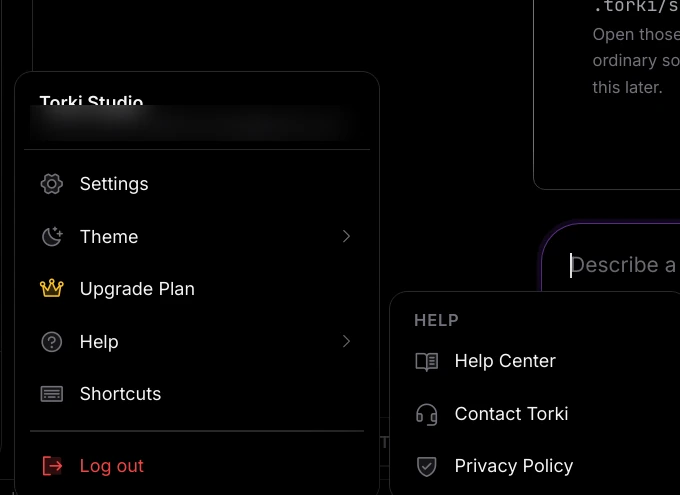
Please do not send passwords, keys or the contents of private files. The Help menu in the menu bar and the account menu's Help also link to the Help Center.
Good to know
- Sending a message again after a failure is safe. It counts as a new message against your plan.
- For how approvals and confinement work, see Permission Modes and Approvals.
FAQ
Torki keeps asking before every command, even in Full auto.
Full auto runs a command without asking only when Torki can confine it to the open folder. If Settings → Workspace → Commands reads not confined — asks first, it cannot do that on this Mac, so it asks before each one. In a project on a server, it asks before each command until you choose Trust this server in the location chip's menu. Commands that add a dependency always ask, in every mode.
My files changed but the Explorer does not show it.
It updates by itself a second or two after a command finishes or your terminal goes quiet. If it does not, press Refresh at the top of the Explorer, or in Source Control. In a project on a server, changes made on the server arrive later; choose Refresh from the server in the location chip's menu.
Torki changed a file I wanted to keep. Can I get it back?
Usually, yes. Click the curved arrow under any answer (Undo a file change) and choose the file. See Undoing a Change.
Did I lose my work when an answer failed?
No. Anything Torki had already written to your files stays, and the conversation up to that point is saved in Sessions (when a folder is open).
Where are my Code conversations?
On this Mac only, in Sessions for each folder. They are not on torkiai.com. See Sessions, History and the Ledger.
How do I reinstall Torki?
Quit Torki, drag Torki AI from Applications to the Trash, then download it again from torkiai.com. Your account and Home chats are not affected, and your Code conversations stay on the Mac unless you delete the app's data. See Torki AI for Mac.