Torki Code
Terminal, Problems and Output
Overview
The bottom panel of Torki Code has three tabs: Terminal, a real shell in your project folder; Problems, the errors and warnings collected from builds, tests and checks; and Output, a running log of what the app did.
The terminal is yours. Torki does not need it and does not type into it: Torki runs its own commands separately, shows them in the conversation, and asks you first unless your permission mode says otherwise.
What it needs
Torki AI for Mac 1.10.8, signed in, with a folder open. A terminal cannot start until a folder is open. Problems and Output work without one.
Get started
1. Show the panel
The panel starts folded down to its row of tabs at the bottom of the window. Press ⌘J, or click the arrow at the right of that row (Show panel ⌘J). Press ⌘J again to fold it away. Drag the bar above the panel to make it taller or shorter.
2. Start a terminal
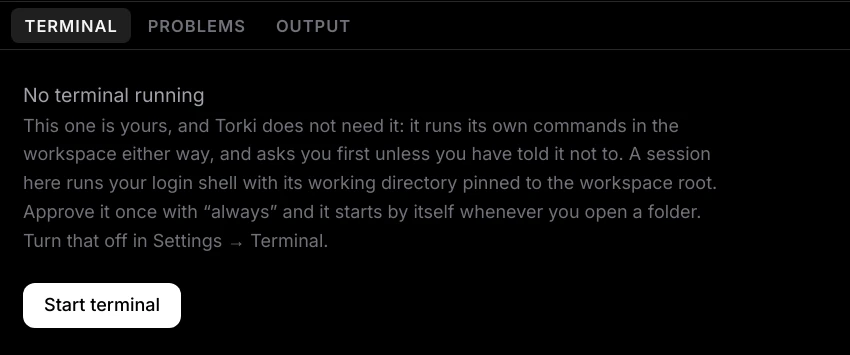
On the Terminal tab you see "No terminal running" and a Start terminal button. Click it, or click New terminal (+), or press ⌃⇧` (Control, Shift and the backtick key).
3. Approve it once
The first time, an Open a terminal approval card appears. It appears in every permission mode, including Full auto, because this shell is not confined to your project. The card says so: "This is your own shell, with your account's permissions. It is not confined to this folder, and this consent is remembered until you revoke it."
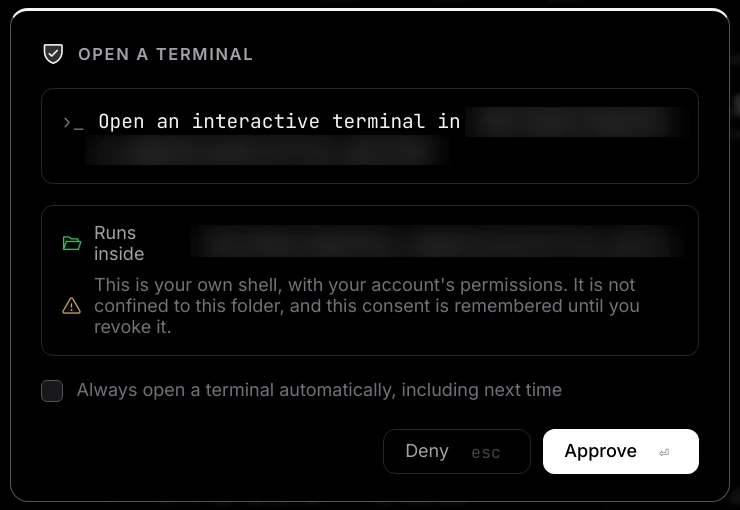
- Click Approve (or press ⏎) to start this terminal.
- Tick Always open a terminal automatically, including next time as well, and Torki remembers your consent across folders and launches.
- Click Deny (or press Esc) and nothing starts.
The terminal
- It runs your login shell — zsh on a standard Mac — with your normal profile, PATH, SSH keys and git setup. It starts in the root of the open folder.
- It is not confined. Anything you type runs with your account's permissions and can reach files anywhere your account can. That is what makes it the place for
git stash,git rebase,brew installornpm install -g, which Torki's own confined commands cannot do on a Mac. - For a project on a server, the terminal is a shell on the server, opened over ssh as your ssh user, in the project folder there. What you type runs on the server, not on your Mac. It still asks for approval the first time, like any terminal. See Working on a Project on a Server.
- Tabs are named after the shell: "zsh 1", "zsh 2" and so on. You can have up to 8 at once ("Too many terminals open (max 8)").
- Each keeps 5,000 lines of scrollback.
- Right-click inside a terminal for Copy, Select all and Clear terminal.
- Close terminal (the bin icon) ends the terminal you are looking at.
Opening another folder closes every terminal and stops anything running in them, along with the background servers Torki started. Quitting Torki, or restarting it to update, does the same.
Starting automatically
Once you have ticked "Always open a terminal automatically", a terminal starts by itself each time you open a folder. It starts quietly; the panel stays folded until you show it. Two settings control this:
- Settings → Terminal → Start automatically: When a folder opens (the default) or Only when I ask. With Only when I ask, you start terminals yourself and they do not ask again.
- Settings → Workspace → Terminal consent shows "granted" or "not granted". Click Revoke to withdraw it: "Terminal consent revoked — the next terminal will ask again".
Until you grant standing consent, nothing starts by itself, and each new terminal shows the approval card.
Your terminal and Torki's commands
When Torki runs a command — a build, tests, a git status — it does not use your terminal. The command and what it printed appear on a card in the conversation. On a Mac those commands are confined so they can write only inside your project, temporary folders and package caches, and each stops after 120 seconds by default. For a project on a server, Torki's commands run on the server and are not confined.
Torki's commands use the same shell setup as your terminal, including version managers such as nvm and pyenv set up in ~/.zshrc. Torki reads it once, when it starts. The Output tab says which applies: "commands use your shell's environment (PATH starts …)", or "could not read your shell environment; commands run as a login shell". If you change your shell setup, quit and reopen Torki for its commands to pick it up.
Problems
The Problems tab collects errors and warnings, each with its file and line where the tool reported one. They come from:
- commands Torki runs on a Run card in the conversation, such as a build or a type check;
- the output of your own terminal, from tools such as tsc, eslint, Node and Python;
- saving a
.jsonfile that is not valid JSON.
- Click a row to open the file at that line.
- The error count shows on the Problems tab. The status bar shows the error (✕) and warning (⚠) counts; click them to open Problems.
- Running the same command again replaces what it reported last time, so fixed errors drop off.
- Clear (the eraser) empties the list. It is also emptied when you open another folder.
- With nothing to show: "No problems. Diagnostics appear here when a command, build or test reports them."
Torki has no language checker running in the editor. Problems shows only what a command actually printed. Tests and checks that appear on a Test card, or under their own tool name, report in the conversation rather than here. To fill Problems, run the build or check in your terminal, or ask Torki to run it as a command.
Output
The Output tab is a timestamped log of what the app did: opening folders, terminals starting and stopping, git operations (including ones that failed), Torki's runs, files put back with Undo a file change, and the line saying which shell environment Torki's commands use. For a project on a server it also logs opening the server folder and problems fetching changes from the server. It keeps the last 800 lines.
- It is the first place to look when something did not happen and no message said why.
- Clear empties it.
- It is cleared when you sign out or another account signs in.
Good to know
- Clear clears whichever tab you are on: the terminal screen, the Problems list or the Output log.
- The command palette (⌘⇧P) has New terminal, Toggle panel, Show Problems and Show Output. For git, it also has Switch branch… and Create branch…, and Undo a file change… puts back a file; see Source Control and Git and Undoing a Change.
- Stopping Torki (Esc or the Stop button) does not reach a program that has detached itself, such as a daemon. Stop it in your terminal or in Activity Monitor.
- When the update sheet offers to restart, it tells you how many terminals are open, because restarting stops anything running in them.
FAQ
Do I need the terminal for Torki to work?
No. Torki runs its own commands either way. The terminal is for you.
Why does the terminal ask for approval even in Full auto?
Because it is not confined to your project. Full auto lets through only commands Torki can confine. Tick "Always open a terminal automatically" once and it stops asking.
How do I stop the terminal starting by itself?
Set Settings → Terminal → Start automatically to Only when I ask, or revoke Terminal consent in Settings → Workspace.
The terminal says "Open a folder first".
A terminal always starts in the open folder, so it needs one. Open a folder, then click Start terminal.
Problems is empty but my build has errors.
Problems fills only from output it saw: your terminal, and commands on a Run card. Run the build again in the terminal, or ask Torki to run it as a command.
Is ⌘J the same as Control-J?
No. On a Mac the panel shortcut is ⌘J. Control-J inside a terminal goes to the shell.