Torki Code
Permission Modes and Approvals
Overview
Torki Code reads your project freely, but before it changes a file, runs a command or opens a terminal it may stop and ask you. How often it asks depends on the permission mode: Manual, Accept edits or Full auto. When it does ask, an approval card appears over the window, showing exactly what Torki wants to do. You approve it or deny it.
Whatever the mode, Torki never reaches outside the folder you opened with its file tools. Modes change how often you are asked, not how far Torki can reach — see Guarded Mode and Privacy.
What it needs
Torki AI for Mac with a folder open in Code. Available on every plan. A new install starts in Manual. After that, Torki remembers the mode you last picked, even after you quit, so check the composer before you start a big task.
Get started
1. Look at the current mode
The mode shows in two places: the shield chip in the composer, next to the folder chip, and at the right end of the status bar. Both read Manual, Accept edits or Full auto.
2. Pick a mode
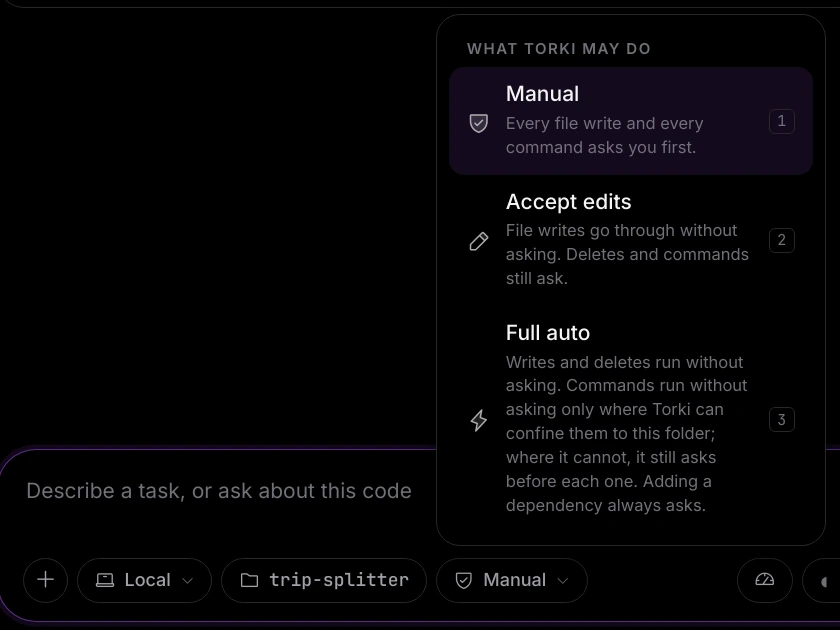
Click the chip in the composer (its tooltip starts "Permissions:" followed by the current mode). A menu headed WHAT TORKI MAY DO lists the three modes with a description under each. Click one, or press 1, 2 or 3 while the menu is open.
3. Answer the cards as they come
Give Torki a task. Each time it needs your say, a card appears with what it wants to do. Press Approve or ⏎ Return to let it go ahead, or Deny or Esc to refuse. You can change mode at any point, including in the middle of a task.
The three modes
Reading is always free: Torki can open, list and search files in the folder without asking in every mode.
- Manual — "Every file write and every command asks you first." Deletes ask too. This is the mode a new install starts in.
- Accept edits — "File writes go through without asking. Deletes and commands still ask." Creating folders and moving or renaming files count as writes, so they go through as well.
- Full auto — "Writes and deletes run without asking. Commands run without asking only where Torki can confine them to this folder; where it cannot, it still asks before each one. Adding a dependency always asks."
What Full auto still asks about
The first-run tour says Full auto "asks about nothing". That is not quite right. Even in Full auto, Torki stops and asks before it:
- Adds a dependency — commands such as
npm install <package>,yarn add,pip install,cargo addorgo get. Plainnpm install, which only restores what the project already lists, is an ordinary command. - Writes Torki's own instructions — a
TORKI.mdfile or anything inside a.torkifolder, including deleting or moving them. - Opens a terminal in the bottom panel, unless you have already given standing consent for that.
- Runs any command at all, when commands cannot be confined on your Mac. Settings → Workspace → Commands tells you which applies: "confined to this folder", or "not confined — asks first".
- Runs any command on a server project, until you choose Trust this server in the location menu (the Local chip, which shows the server's name for a server project). Commands on a server are never confined, so trusting the server is what lets Full auto run them without asking. See Working on a Project on a Server.
Your own Discard changes in Source Control also always asks, in every mode, because it throws away work that cannot be got back.
Other places to change the mode
- Status bar — click the mode name at the bottom right. Each click moves to the next mode.
- Settings — Settings → Agent → Permission mode. The description of the chosen mode shows underneath.
- Command palette — press ⌘⇧P and choose Permission mode: Manual, Permission mode: Accept edits or Permission mode: Full auto.
- In the chat — type
/mode manual,/mode editsor/mode auto. Torki replies, for example, "Permission mode is now "auto"."
The approval card
Every card has the same parts, top to bottom:
- What kind of request it is — Write to a file, Run a command, Delete a file or Open a terminal. When a specialist is asking rather than Torki itself, the heading adds who, for example "Write to a file — asked for by test-writer".
- A queue count — "1 of 2" when more requests are waiting behind this one.
- The detail — the file path or the full command, after a sign: ✎ for a write, $ for a command, ✕ for a delete, ›_ for a terminal.
- A preview of the change — for writes only (see below).
- Where it runs — "Runs inside" and your folder, with a second line saying how far the action can reach.
- An "Always allow" tick box, then Deny and Approve.
Commands
A command card shows the whole command exactly as Torki will run it. Read it before you approve: a command runs in a real shell on your Mac — or, for a project on a server, on that server, in the project folder there, as your ssh user, where it is never confined.
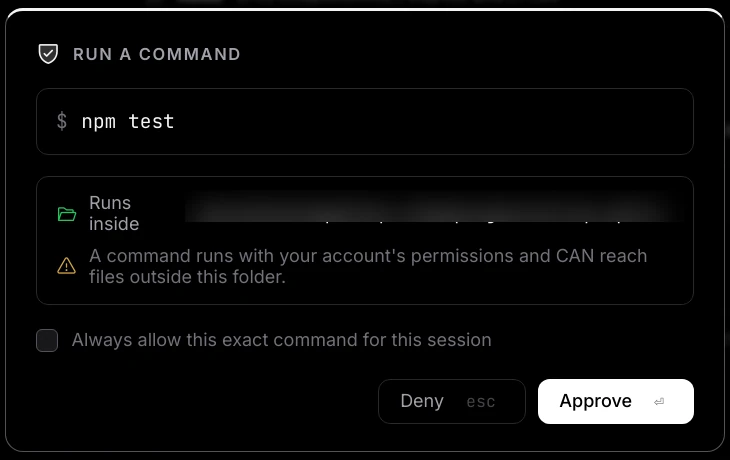
The second line under "Runs inside" tells you what the command can reach:
- "Writes are confined to this folder. The command can still READ files elsewhere." — the usual case on a Mac.
- "A command runs with your account's permissions and CAN reach files outside this folder." — shown in amber when Torki cannot confine the command. Read these cards with extra care.
Several other actions arrive as Run a command cards, because they act on your Mac in the same way:
- Starting a dev server or watcher — the detail starts "Run in the background:", for example "Run in the background: npm run dev".
- Stopping one of those servers — "Stop the background process #1 (…)".
- Opening a page in the Horizon panel — for example "Open http://localhost:5173 in the browser panel". See Previewing Your App in Horizon.
- Clicking, typing or scrolling in the open page — for example "Type into … on the open page", "click … on the open page" or "scroll on the open page".
- Adding a dependency — the detail reads "Adds a dependency to this project —" followed by the command.
Writes, with the change shown
A Write to a file card shows what will change before you approve it. A line at the top sums it up — "New file · 138 lines", "34 lines added · 1 line removed", "Replaces the whole file · …", or "No change" — and below it the lines themselves: added lines marked + in green, removed lines marked − in red, and the untouched stretches folded into rows such as "279 unchanged lines". Scroll inside the preview to see all of it.
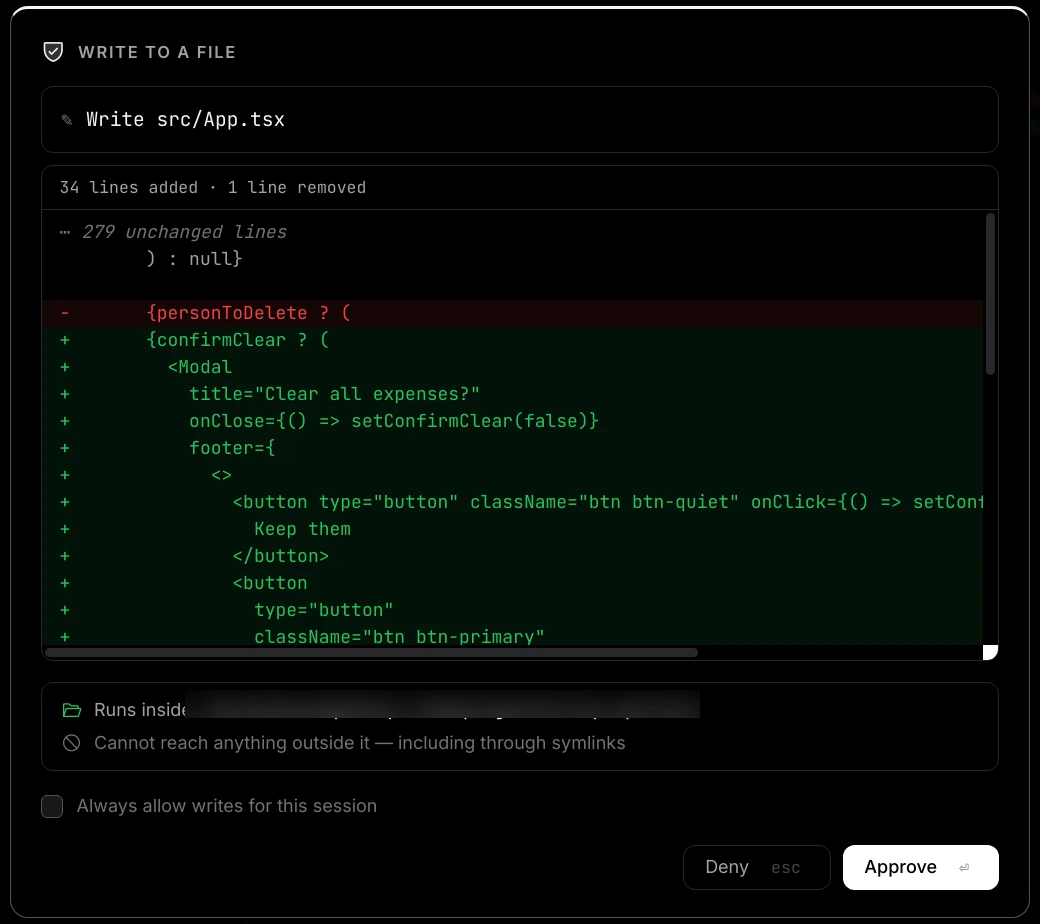
For a very large change, the card says "This change is large, so only the first … lines of the new text are shown." For a file that may hold passwords or keys, it says "This file may hold passwords or keys, so its contents are not shown here."
Other writes use the same card with a different detail line: "Create folder …", "Move … → …", "Save image …" for a picture Torki generated, and "Create a new project at …" when Torki starts a new project in ~/Torki Projects because no folder was open. In Manual mode, staging and committing that Torki does for you also ask on this card, with details such as "Stage every change" and "Commit:" followed by the commit message.
The line under "Runs inside" for a write or delete always reads "Cannot reach anything outside it — including through symlinks".
Deletes
A Delete a file card names what Torki wants to remove. Before Torki overwrites, moves or deletes a file it keeps a copy, so you can put it back from Undo a file change (see Good to know).
Torki's own instructions
When the request touches TORKI.md or the .torki folder, the detail line starts "Torki's own instructions —". Once a project is trusted, these files go into Torki's instructions on every turn, so writing, moving or deleting them asks in every mode and is never remembered. See Specialists, Skills and Project Instructions.
Opening a terminal
The first time you press Start terminal in the bottom panel, an Open a terminal card appears, in every mode. Its second line is in amber: "This is your own shell, with your account's permissions. It is not confined to this folder, and this consent is remembered until you revoke it." See Terminal, Problems and Output.
Approve, Deny and "Always allow"
Approve
Click Approve or press ⏎ Return. When a card appears, Approve already has the keyboard focus. If more requests are queued, the next card follows straight away.
Deny
Click Deny or press Esc. Nothing happens to your files, and the step shows as declined in the conversation — for example "Declined. The command did not run." or "Declined. src/main.js was not changed." Torki is told you said no and carries on from there: it may try another way, or tell you what it could not do. If you want the whole task to end, deny the card and then press Esc again or click Stop.
While a card is on screen, Esc means Deny for that one card. It does not stop the task.
Always allow
Tick the box before you approve and Torki stops asking about that kind of request for a while. The wording tells you how far it goes:
- Always allow writes for this session — every file write.
- Always allow this exact command for this session — only this command, character for character. A different command still asks.
- Always allow deletes for this session — every delete.
- Always open a terminal automatically, including next time — the one consent that survives a restart. Turn it off in Settings → Workspace → Terminal consent → Revoke.
Writes, commands and deletes you always-allowed are forgotten when you open another folder or restart Torki. On a card for a dependency or for Torki's own instructions, the tick box makes no difference: those ask every time.
When you are away from the window
If Torki needs an answer while you are in another app or on Home, macOS shows a notification such as "Torki wants to run a command", "Torki wants to write a file", "Torki wants to delete something" or "Torki needs your approval". Click it to go straight to the card. Torki waits until you answer.
Choose what you are told about in Settings → Notifications → Notify me. With Off, "A run waiting for your approval will wait silently."
Good to know
- Your own clicks do not ask. Saving with ⌘S, creating, renaming or moving files in the Explorer, Stage, Unstage, Commit and Initialise in Source Control, switching or creating a branch from the status bar or the command palette, and putting a file back from Undo a file change go straight through. Deleting in the Explorer and Discard in Source Control still confirm.
- Pull and Push are treated like a commit. The two arrow buttons in Source Control go through the same check as a commit Torki makes, so in Manual mode they show a Write to a file card first, reading "Pull from the remote" or "Push to the remote". Approve it to go ahead; if you deny it, nothing happens and no message appears. Ticking Always allow writes for this session on that card does not stop it appearing for the next Pull or Push. In Accept edits and Full auto they run straight away.
- Some things are refused, not asked. Paths outside the folder and anything inside
.gitare refused in every mode, with no card, because approving would not be allowed anyway. Torki's file tools also refuse credential files such as.env,.pemorid_rsain every mode. - Stop and waiting cards. Pressing Stop takes down a waiting command, test, check or server card. A card for a file write, folder, move, delete, stopping a server or opening a terminal stays until you answer it — Deny is enough, and the task then ends.
- Undo. Click the curved arrow under an answer (Undo a file change), or choose Undo a file change… in the command palette. It lists the last 40 file changes in this folder, Torki's and yours, newest first. Putting one back never asks for approval, in any mode, and can itself be undone from the same list. Files over 8 MB are not kept, and changes made by commands are not listed. See Undoing a Change.
- Full auto is best with git. If the project is a git repository, you can review everything Torki did afterwards in Source Control — see Source Control and Git.
FAQ
Which mode should I use?
Start with Manual on a project you do not know well, or when you want to see every step. Accept edits suits most everyday work: you still see every command and delete, but writes do not interrupt you. Use Full auto for longer tasks in a project tracked by git, so you can review the changes afterwards.
I set Full auto and Torki still asks before every command.
There are two possible reasons. If the project is on a server, Full auto asks before each command there until you choose Trust this server in the location menu. On your Mac, it means commands cannot be confined on this Mac, so Torki asks instead of running them unchecked. Look at Settings → Workspace → Commands: it reads "not confined — asks first" in that case.
Why does it ask before npm install of a new package even in Full auto?
Adding a dependency is a lasting decision about your project, so it always asks. Plain npm install with no package name does not count.
I ticked "Always allow" and now it is asking again.
Those grants last until you open another folder or restart Torki. "This exact command" also only covers the identical command: a different flag or file name asks again.
Can I approve a change but edit it first?
Not on the card. Deny it and tell Torki what to change, or approve it and edit the file yourself in the editor.
Is there an "Approve all" button?
No. Tick the "Always allow" box on a write or delete card, or switch to Accept edits or Full auto.