Torki Code
Working on a Project on a Server
Overview
Torki Code can work on a project that lives on a server, not only on one in a folder on your Mac. You choose the server from the location chip under the message box, pick the project folder on it, and the Explorer, the editor, Search, Source Control, the terminal and Torki itself all work on that project.
Torki keeps a copy of the server folder on this Mac and works on that copy. Every save is sent to the server straight away. Anything that runs — commands, tests, code checks, git, development servers and the terminal — runs on the server, in the project folder there, as your ssh user.
This article covers connecting, the folder browser, what is copied to your Mac and what stays on the server, how changes travel in each direction, permissions on a server, and the messages you may see.
What it needs
Torki AI for Mac 1.10.8, signed in. Available on every plan. Your saved servers are kept for your Torki account, so you must be signed in to add one.
A server you can reach with ssh from this Mac. Torki uses this Mac's own ssh, with the same keys, ssh-agent and ~/.ssh/config as Terminal. If ssh to the server works in Terminal, it works in Torki.
python3 on the server. Nothing is installed there: Torki sends a small helper over ssh for each request, and it needs python3 to run.
A project folder, not the whole server. A server's home folder and / cannot be opened as a project, and a project of more than 50,000 files is refused (folders that are not copied, listed below, do not count).
Get started
1. Check that ssh works in Terminal
Open Terminal and connect to the server the way you usually do, for example ssh staging. If that works without any extra steps, Torki can connect the same way. If you use a name from ~/.ssh/config in Terminal, choose that same name in Torki.
2. Open the location menu
In the composer's bottom row, click the chip that reads Local (its tooltip says "This project is on this Mac"). A menu headed WHERE TORKI WORKS opens.
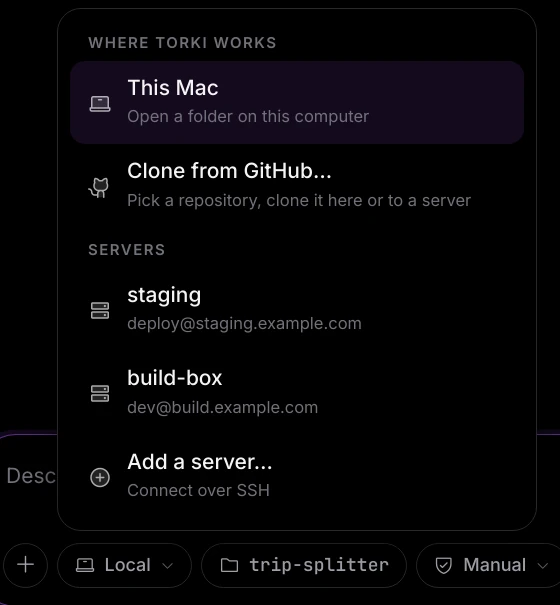
~/.ssh/config are listed under SERVERS, each with its user and address underneath.3. Choose a server, or add one
Click a server under SERVERS. If yours is not listed, click Add a server… and fill in the form (see Adding a server below).
4. Answer ssh if it asks
If the server needs a password or your key needs its passphrase, or you have never connected to this server from this Mac before, Torki asks in its own window. See When ssh asks a question below.
5. Pick the project folder
The folder browser opens at your home folder on the server. Click into the project folder and click Open followed by the folder's name.
6. Wait for the copy
The dialog reads "Opening on" and the server's name, with "Bringing" and the path "to this Mac…", and counts the files ("120 of 480 files"). When it finishes, Torki shows "Opened" with the folder's name, and a new conversation starts. The location chip now shows the server's name, and the folder path in the status bar reads the server's name, a colon and the path there.
The location chip and its menu
The location chip sits between + and the folder chip. It shows a laptop and Local for a project on this Mac, or a server icon and the server's name for a project on a server; hover over it to see "On" the server and the path. In a narrow window it shows only its icon.
The menu lists, from the top:
- This Mac — "Open a folder on this computer". It opens the usual macOS folder window. This is how you go back to a project on your Mac.
- Clone from GitHub… — not switched on yet; see Clone from GitHub below.
- RECENT ON SERVERS — only once you have opened a server project. Up to 5, each shown as the server's name, a dot and the folder's name, with the full path underneath. Click one to open it again straight away; the open one is ticked.
- SERVERS — the servers you added yourself first, then every server named in your
~/.ssh/config(including files it includes). Each shows its name with its address underneath (and the user and port, where they are set), and "· trusted" once you trust it. Entries with wildcards are left out, and so are code hosts such as github.com, gitlab.com and bitbucket.org, because they cannot hold a project folder. - Add a server… — "Connect over SSH".
- While a server project is open, a section headed with the server's name in capitals, with Trust this server (or Stop trusting this server) and Refresh from the server ("Bring back changes made there"). Both are described below.
Only one menu under the message box is open at a time, and Esc closes it.
Adding a server
Click Add a server…. The dialog explains: "Torki uses this Mac’s ssh, so your ~/.ssh/config, keys and ssh-agent work as they do in Terminal. Servers in ~/.ssh/config are already listed."
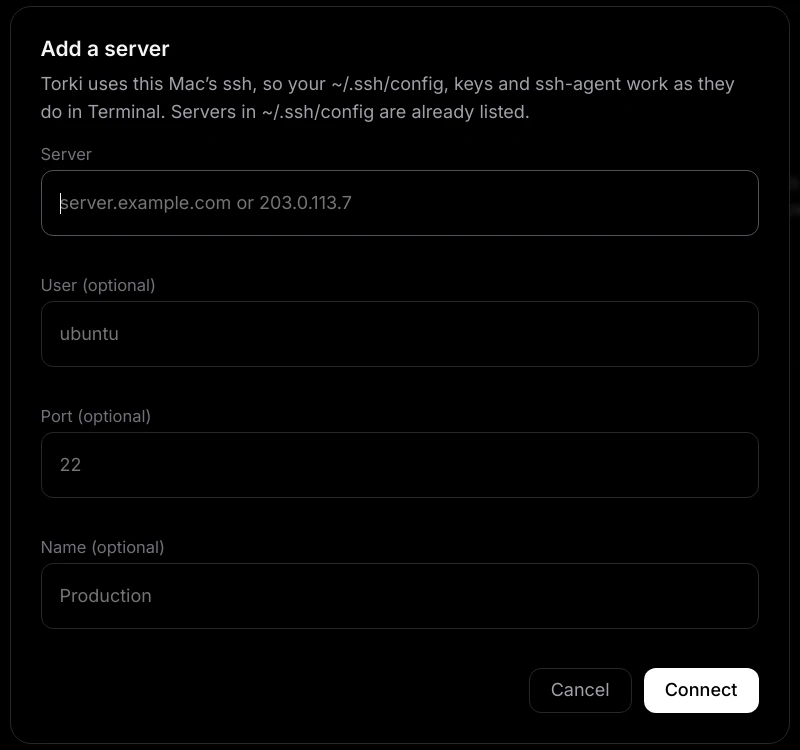
- Server — its address, such as
server.example.comor203.0.113.7. - User (optional) — the user to log in as, such as
ubuntu. - Port (optional) — if it is not 22.
- Name (optional) — what the menu calls it, such as "Production" (up to 60 characters). Without one, the menu shows the user, address and port you typed.
Click Connect or press Enter. The button reads "Connecting…" while Torki tries. If the connection works, the dialog turns into the folder browser. If it fails, the reason appears in red under the fields, what you typed stays in the form, and the server is not added to your list.
Already in ~/.ssh/config? Then it is already in the SERVERS list; choose it there. A server you add by its bare address uses the key that your ~/.ssh/config names for the same address and port.
When ssh asks a question
ssh's questions appear in Torki's window, on top of whatever dialog caused them:
- A password or a key passphrase — a card titled "The server is asking" shows ssh's own question and a password field. Type it and click Continue (or press Enter), or click Cancel.
- A server you have not connected to before — a card titled "Is this the server you meant?" shows ssh's question with the server's fingerprint. Click Yes, connect only if you recognise it; otherwise click Cancel. Torki never accepts a new server for you.
Esc cancels, and a question left unanswered for 5 minutes is cancelled.
The folder browser
The dialog is titled "Open a folder on" and the server's name. It starts at your home folder on the server.
- The path box at the top shows where you are. Type a path and press Enter to jump there.
- The list starts with .. (one level up), then the folders here. Hidden folders are not shown, except
.config. An empty folder says "No folders here." - The line under the list says "This folder is a git repository." when it is one.
- The button reads Open with the folder's name. Click it to open that folder as the project.
At your home folder or at /, the line reads "This is the whole home folder. Pick the project folder inside it." and Open is greyed out: the whole of it would be copied to your Mac. Click into the project folder first. Cancel or Esc closes the browser, except while a project is opening.
What runs where
- On the server, in the project folder, as your ssh user: the commands Torki runs, its tests and code checks, development servers it starts, its git steps, and Source Control's git (status, staging, commits, discards, branches, Pull and Push). The built-in terminal is a shell on the server too, starting in the project folder; opening it asks for your consent just as it does for a project on your Mac.
- On your Mac: reading and saving files, Search, the editor, Undo, Horizon, and the conversation with Torki. Torki itself runs on Torki's servers, never on yours.
Torki is told that the project is on a server, where it is, and that its commands run there.
Previewing a development server
When Torki starts a development server on the server, Torki forwards it to this Mac so that Horizon can show it. It uses the same port number if that port is free on your Mac; if not, it uses another one, and the address Torki reports for the development server is the one that reaches it from your Mac. To preview a server project in Horizon, ask Torki to start the development server for you. See Previewing Your App in Horizon.
What is copied to your Mac, and what stays on the server
When you open a server project, Torki copies the folder to this Mac and works on that copy. These are never copied and stay on the server only:
- Folders named
.git,node_modules,.venv,venv,__pycache__,.next,dist,build,target,.cache,.turboorcoverage, wherever they are in the project, and everything inside them. .DS_Storefiles.- Any file over 20 MB. After opening, Torki says how many there were, for example "3 files are over 20 MB and stay on the server only".
The Explorer, Search, the editor and Torki's file tools do not see any of these. Torki knows they exist and uses a command on the server when it needs them, for example to list what is in node_modules. Torki's tools for finding where something is defined and what calls it are not available on a server project, because they need the .git folder.
The copy is kept in ~/Library/Application Support/torki-desktop/remote on your Mac. A large project takes the same space here as on the server, less the folders above.
Saving, and changes in each direction
From your Mac to the server
Every save is sent to the server straight away — your own saves and Torki's writes, new folders, renames, moves, deletes, and files put back with Undo. If a save could not reach the server, Torki says so as an error, never as saved: "Saved on this Mac, but it did not reach the server" with the server's name and the reason.
Before any command, test, check, development server or git step runs, Torki sends anything not yet on the server. If that fails, you see "Could not send your latest changes to the server first" and nothing runs.
From the server to your Mac
Changes made on the server by anything other than Torki — another person, a scheduled job, your own ssh session in Terminal — are not seen instantly. They arrive:
- after Torki runs a command;
- a moment after the terminal in Torki goes quiet;
- after a Pull, a branch switch, a discard or initialising a repository;
- when you choose Refresh from the server in the location menu. Torki says "Up to date with the server" when it is done.
Open file tabs reload then. A tab with unsaved changes is never overwritten.
Changed on both sides
If a file changed on your Mac and on the server since they last matched, the server's version wins and opens, and yours is saved beside it with .torki-local added to its name. A red message says, for example, "1 file changed here and on the server — the server’s version is open; yours is kept beside it as .torki-local".
- Open the
.torki-localfile in the Explorer. - Copy back into the real file anything you still want, and save.
- Delete the
.torki-localfile.
.torki-local files are never sent to the server.
Full auto and Trust this server
On your Mac, Torki confines the commands it runs to your folder. Nothing does that on a server: a command there can reach anything your ssh user can. So on a server project:
- Manual and Accept edits ask before every command, as they always do.
- Full auto also asks before every command, until you trust the server. Torki gives the reason as "Commands on" the server "ask first until you choose to trust this server."
To let Full auto run commands there without asking, open the location menu and choose Trust this server ("Full auto asks before each command here until you do"). Torki confirms with "Trusting" and the server's name, "Full auto runs commands there without asking". To undo it, choose Stop trusting this server; Torki says Full auto will ask before each command. Trust is kept for your Torki account on this Mac, and the server shows "· trusted" in the list. It changes only Full auto: file writes, dependencies, Torki's own instructions and the terminal follow the usual rules — see Permission Modes and Approvals.
The Guarded shield's tooltip says the same: "Files: Torki reads and writes only inside" the project's path, then "Commands run on" the server "as your ssh user — Torki asks before each one." Once trusted, it ends "this server is trusted, so Full auto runs them without asking."
Read server commands carefully. On a command card, read the command itself: it runs on the server, as your ssh user, and nothing confines it there. On a trusted server, Settings → Workspace → Commands reads "confined to this folder", but commands on the server are not confined. Trust only servers where you are happy for Torki to run commands unattended.
Removing a server
Servers you added yourself show a × ("Remove" and the server's name) when you point at them in the location menu. Click it and confirm: "Remove … from your servers? Nothing on the server changes." Removing it also forgets that you trusted it.
Servers that come from ~/.ssh/config have no ×. To remove one from the list, remove its entry from ~/.ssh/config.
Clone from GitHub
Clone from GitHub… is in the location menu, but GitHub sign-in is not switched on in this version. Choosing it shows:
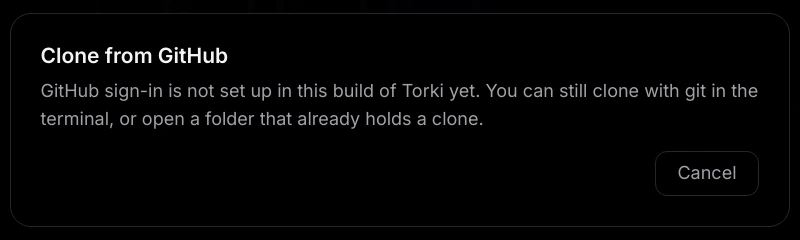
"GitHub sign-in is not set up in this build of Torki yet. You can still clone with git in the terminal, or open a folder that already holds a clone." The only button is Cancel, and nothing is opened or changed. To work on a repository today:
- On your Mac — run
git clonein Terminal or in Torki's terminal, then open the new folder with This Mac. - On a server — run
git cloneon the server (over ssh, or in Torki's terminal while a server project is open), then open the new folder from the server in the location menu.
Messages you may see
Connecting
- "… refused the login: this Mac offered no key it accepts (…)" — the server did not accept any of your keys. If you connect in Terminal with a name from
~/.ssh/config(ssh <name>), choose that name in the SERVERS list instead of adding the bare address. - "… refused the login (…)" — the user name or password was wrong, or the server refused that user.
- "Could not find …" — the address could not be looked up. Check the spelling, and that you are on the right network or VPN.
- "Could not reach …" — the connection was refused or timed out. Check the address, the port, your network, and that
sshworks in Terminal. - "…'s identity was not accepted, so Torki did not connect (…)" — the server's key was refused, either because you chose Cancel or because it no longer matches the one in your
~/.ssh/known_hosts. If you know the server was rebuilt, fix that file in Terminal; otherwise ask whoever runs the server. - "ssh could not talk to …" — ssh failed for another reason, which follows the colon.
- "Could not start ssh (…). Is OpenSSH installed?" — the Mac's ssh could not be run. Check that
sshworks in Terminal. - "Torki needs python3 on … to read and write files there, and it is not installed." — install
python3on the server, then try again. - "… did not answer in time." — try again; if it keeps happening, the server or the connection is slow.
- "Type the server’s address.", or a sentence saying a value "is not a server name Torki can connect to", "is not a user name Torki can log in as" or "is not a port number" — fix that field.
- "… hosts code, it is not a server you can open folders on." — github.com and similar cannot be added as servers. Clone the repository instead, as described above.
- "Sign in to Torki to save servers." — sign in, then add the server again.
- "That server is not in your list any more." — it was removed; add it again.
Opening
- "This is the whole home folder. Pick the project folder inside it.", or a message that a path "is the whole home folder" or that
/"is the whole server" — open the project folder inside it instead. - "… files is more than Torki mirrors from a server (50000). Open a subfolder of the project instead." — open a smaller part of the project.
- "… files are over 20 MB and stay on the server only" — not an error. Those files are on the server, but not on your Mac.
While you work
- "Saved on this Mac, but it did not reach the server (…)" — your change is on your Mac only. Once the connection is back, save the file again; Torki also sends what is missing before its next command.
- "Could not send your latest changes to the server first (…)" — the command did not run. Check the connection and try again.
- "… changed here and on the server — the server’s version is open; yours is kept beside it as .torki-local" — see Changed on both sides above.
For everything else, see Troubleshooting Torki Code.
Good to know
- One project at a time. Opening a server project, like opening any folder, starts a new conversation and resets terminals, development servers Torki started and any "Always allow" choices.
- Reopening. Settings → Workspace → Reopen last folder reopens only folders on this Mac. Reopen a server project from RECENT ON SERVERS in the location menu.
- Branches, Pull and Push in Source Control and the status bar work on server projects, running git on the server. See Source Control and Git.
- Torki can run git commands on a server. On your Mac, the commands Torki runs cannot write into
.git. On a server they are not confined, so Torki can run commands such asgit switchorgit pushthere, asking first according to your mode and whether you trust the server. - Your saved servers, trusted servers and recent server projects belong to your Torki account on this Mac. Another Torki account signed in on the same Mac does not see them.
- Undo works on server projects. A file you put back with Undo a file change is sent to the server like a save. See Undoing a Change.
FAQ
Do I need to install anything on the server?
No. The server needs to accept ssh from this Mac and to have python3. Torki sends what it needs over ssh for each request.
Does Torki run on my server?
No. Torki runs on Torki's servers. Your server only runs the commands, tests, git and development servers for the project, and holds the files.
My server needs a password. Does that work?
Yes. ssh's password or passphrase question appears in Torki's window, titled "The server is asking".
Why can I not see node_modules or .git in the Explorer?
They are not copied to your Mac; nor are build output and files over 20 MB. They are still on the server, and commands and Torki can use them there.
I changed a file on the server directly. Why does Torki not show it?
Changes made on the server arrive after Torki's next command, shortly after the terminal goes quiet, or when you choose Refresh from the server in the location menu.
Why does Full auto ask before every command on my server?
Commands on a server are not confined, so Full auto asks until you choose Trust this server in the location menu.
Why can I not open my home folder?
Opening a folder copies it to your Mac, and a home folder usually holds every project and cache on the server. Open the project folder inside it.
Can I clone a GitHub repository with Clone from GitHub…?
Not yet; GitHub sign-in is not switched on. Run git clone in a terminal and open the folder.
How do I go back to a project on my Mac?
Click the location chip and choose This Mac, or open a folder any other way.