Torki Code
The Editor, Explorer and Search
Overview
Torki Code has its own file tree, a text editor and a search across the whole project, so you can read and change files yourself while Torki works on them. The Explorer shows the folder you opened, files open in tabs beside the Chat tab, and Search finds text in every file in the project.
The editor is deliberately light. It is good for reading code, making a fix and saving, and for checking what Torki changed. It is not a full IDE: there is no find-in-file, no multi-cursor and no autocomplete.
What it needs
Torki AI for Mac, signed in, with a folder open. These articles describe version 1.10.8 — check yours in Code's Settings → Workspace → Version. If no folder is open, the Explorer says "No folder open" with an Open folder… button; see Getting Started with Torki Code.
Get started
1. Open the Explorer
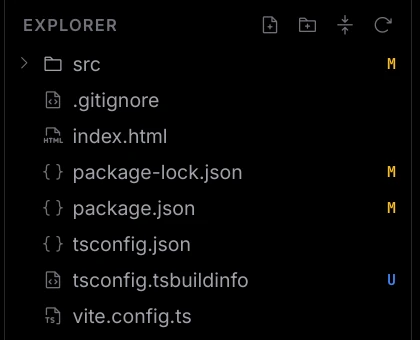
Click Code at the top of the sidebar, then the Files icon (the folders icon, first in the row of icons). The pane is headed Explorer and lists the open folder.
2. Open a file
Click a folder to expand it, and click a file to open it in a tab. Pictures (PNG, JPG, GIF, WebP, BMP, AVIF and ICO) open in an image viewer instead of the editor. SVG files open as text, because they are source you edit.
3. Edit and save
Type in the editor, then press ⌘S. A note at the bottom right says "Saved name". Saving is your own action, so it never raises an approval card, whatever the permission mode.
4. Go back to the conversation
Click the Chat tab, which is always first in the tab strip, or press ⌘E to jump back to the chat with the cursor in the message box.
The Explorer
Header buttons
- New file and New folder — a row appears with the placeholder "file name" or "folder name". Type the name and press Return. You see "Created path". If the name is taken: "path already exists. Choose a different name."
- Collapse all — closes every expanded folder.
- Refresh — reads the folder again ("Tree refreshed").
The Explorer refreshes by itself a moment after Torki runs a command, and shortly after output in your terminal settles, so files a command created or deleted show up without you doing anything. If the tree still looks out of date, click Refresh.
Selecting, moving and deleting
- Shift-click selects a range of rows; ⌘-click adds or removes one row.
- Drag rows onto a folder to move them. You see "Moved to folder".
- Delete or Backspace deletes the selection after you confirm: "Delete path? This cannot be undone." For a folder the question adds "and everything in it".
Despite what the question says, Torki keeps a copy of what you delete here, so a file or folder of 8 MB or less can be brought back with Undo a file change (the curved arrow under any of Torki's answers, or Undo a file change… in the command palette), as long as it is among the last 40 changes in the folder. Renames and drags are kept the same way. See Undoing a Change.
The right-click menu
Right-click a file or folder for:
- New file, New folder
- Rename — edit the name in place ("Renamed to name")
- Copy path (or Copy N paths for a selection) — "Path copied"
- Ask Torki about this — puts the path in the message box, ready for your question
- Delete file, Delete folder or Delete N items
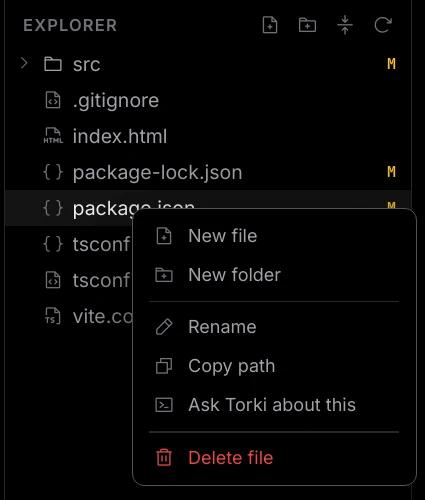
There is no "Reveal in Finder". To find a file in Finder, use Copy path and paste it into Finder's Go to Folder.
Change letters
When the folder is a git repository, a letter on the right of a row shows its state. Hover it for the word.
- M Modified, A Added, D Deleted, R Renamed
- U Untracked, C Conflict, I Ignored
On a folder the tooltip reads, for example, "Modified inside this folder". To review and commit those changes, see Source Control and Git.
Tabs
- A file you click in the Explorer opens in a tab that stays open until you close it.
- A file you open from a Search result, a Problems row or Go to file (⌘P) opens in a preview tab, shown in italics. The next preview replaces it, so you can step through results without collecting tabs. Start typing in it, or double-click the file in the Explorer, and it stays.
- ⌘W closes the current file tab. The Chat tab cannot be closed.
Unsaved changes
A tab with unsaved changes shows a dot. Hovering it reads "Unsaved changes. Close". Torki never saves for you, and it protects unsaved work in these places:
- Closing the tab asks: "name has unsaved changes. Close it anyway?"
- When Torki changes a file you have open, the tab reloads with the new text. If you had unsaved edits in it, the tab is not reloaded and you see "name changed on disk but you have unsaved edits". Copy what you need, then close and reopen the file.
- Opening another folder keeps tabs with unsaved text open and says how many there are, so you can copy anything you need.
- Close workspace (in the command palette) offers Save all and close, Close without saving and Cancel.
- Quitting asks "Do you want to save your changes to file before quitting?" or, for several files, "You have unsaved changes in N files. Save them before quitting?", with Save All and Quit, Quit Without Saving and Cancel.
What the editor does
- Syntax colouring, line numbers, and the cursor position ("Ln X, Col Y") and the file's language in the status bar.
- Tab inserts two spaces.
- Each tab has its own undo history: ⌘Z to undo and ⇧⌘Z to redo.
- Saving a
.jsonfile checks it. If it is not valid JSON, the error goes to Problems with its line number. - The editor's colours follow the theme you pick in Settings → Appearance; see Keyboard Shortcuts and Settings.
What it does not do
- No find or replace inside a file. Use Search (⌘⇧F) for text and Go to file (⌘P) for names.
- No multi-cursor, no autocomplete and no code suggestions as you type. Ask Torki instead.
- No extensions. VS Code extensions do not install.
Files it will not open
- Text files larger than 2 MB: "File is too large to open here."
- Binary files: "Binary file — nothing to show as text."
- Private keys and credential files, such as
.envfiles,.pemand.keyfiles,id_rsa, and anything under.sshor.aws: "Torki does not open private-key or credential files." Neither the editor nor Torki's file tools read them. Open those in another editor. - HEIC and TIFF pictures cannot be shown in the image viewer.
Search in the workspace
Click the Search icon in the sidebar, or press ⌘⇧F. Type in the box labelled "Search in workspace". Results appear as you type, from the second character.
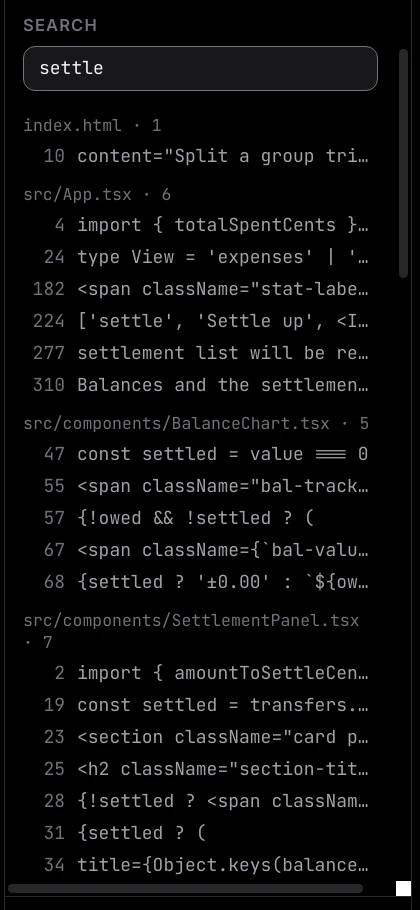
- Results are grouped by file as "file · N". Each hit shows its line number and the line.
- Click a hit to open the file at that line, in a preview tab.
- Up to 20 hits are listed under each file.
- The search stops at 200 matches and says "Results truncated at 200 matches." Type more of the text to narrow it.
How it matches
There are no options to set. Search matches the exact text you type, including upper and lower case. It does not take regular expressions or wildcards.
If nothing matches and you typed a single name made of several words, such as findUser, Search also tries the other ways that name is commonly written, such as find_user.
What it skips
- The
.gitfolder, and everything your.gitignoreexcludes (for examplenode_modulesin most projects). - Credential files (the same list the editor refuses).
- Files larger than 2 MB, binary files, PDFs, and Office documents (Word, Excel, PowerPoint and OpenDocument files, old or new).
- Lines longer than 2,000 characters, such as minified code.
Projects on a server
For a project on a server, the Explorer, the editor and Search work on the copy of the project kept on this Mac. Some things are never copied, so they do not appear in the tree or in search results: .git, node_modules, virtual environments (.venv, venv), build output such as dist, build, .next and target, caches, and any file over 20 MB. They are still on the server. Each save is sent to the server straight away. See Working on a Project on a Server.
Find a file by name
Press ⌘P for Go to file and type part of the name. It looks up to six folders deep and indexes up to 5,000 files. "No file matches." means nothing in that index has the name.
Good to know
- Editing a file yourself never asks for approval. Approval cards are for what Torki does; see Permission Modes and Approvals.
- Deleting in the Explorer does not use the Bin. Recent deletes can be brought back with Undo a file change instead.
- Torki sees the names of your open editor tabs with each message, so "fix the file I have open" works.
- A file outside the open folder cannot be saved here: "name belongs to other folder, not to the open project, so it was not saved."
If saving fails with "Torki could not save file because macOS did not allow it", open System Settings → Privacy & Security → Files and Folders and turn on the folder your project is in for Torki. If the file itself is locked, unlock it with Get Info in Finder, then save again.
FAQ
Is this VS Code?
No. It is Torki's own lightweight editor. It has no extensions, IntelliSense or find-in-file. You can keep your usual editor open on the same folder as well.
How do I search inside one file?
There is no find-in-file in 1.10.8. Use Search with text that is specific to that file, or ask Torki "where in file is …".
Why is a file missing from search results?
It may be ignored by .gitignore, be larger than 2 MB, be a PDF or an Office document, or be a credential file. Search also matches upper and lower case exactly.
Can I undo a delete from the Explorer?
Yes, usually, although the confirmation says it cannot be undone. There is no Bin, but there is Undo a file change: click the curved arrow under any of Torki's answers, or choose Undo a file change… in the command palette (⌘⇧P), then choose "Bring back path". It keeps the last 40 file changes in the folder, for files and folders up to 8 MB; see Undoing a Change. If the file was committed to git, you can also bring it back in the terminal, for example git checkout -- path/to/file.
The tree does not show a file I just created in the terminal.
It should appear a second or two after the terminal goes quiet. If it does not, click Refresh at the top of the Explorer. In a project on a server, a file you create in the server terminal arrives the same way; files in folders that are never copied, such as node_modules, do not appear.