Torki Code
Specialists, Skills and Project Instructions
Overview
Torki Code can hand part of a job to a specialist — a focused helper with its own instructions, its own short list of tools and its own step budget — and can load a skill, a page of guidance for a particular kind of work, when the task calls for it. You can type slash commands in the composer to control the session, and write your own.
You can also tell Torki how your project works, once, in a TORKI.md file. A project's own TORKI.md and .torki folder are only read after you trust the project.
What it needs
Torki AI for Mac with a folder open in Code. Available on every plan. The built-in specialists and skills come with the app. Your own definitions are plain Markdown files in your project or in ~/.torki on your Mac.
Get started
1. See what is available
Type / as the first character in the composer to see every command. Run /agents to list the specialists and the tools each may use, and /skills to list the skills.
2. Let Torki delegate, or ask for a specialist
Torki hands a job to a specialist when it fits. You can also ask for one by name, for example "Have the reviewer look at my changes" or "Ask the test-writer to cover the settle-up maths".
A delegated job shows in the conversation as a Look into card, with the specialist's current step on it.
3. Approve what it changes
Three specialists can write files. Their requests appear on the usual approval cards, with their name added — for example "Write to a file — asked for by test-writer" — and follow your permission mode exactly as Torki's own do. See Permission Modes and Approvals.
The built-in specialists
There are nine. Six only look and report:
- planner — "Turns a vague request into an ordered list of concrete edits, with the real files named, before anything is written."
- explorer — "Answers one question about this codebase by going and reading it." It is the default when no other specialist fits, and can search the web.
- reviewer — "Reads the pending changes and reports correctness defects with file and line. Findings only — it does not fix anything."
- security-auditor — "Reviews changes for injection, authorisation, secrets, path traversal and SSRF, and says plainly what it could not check."
- dependency-scout — "Answers whether this project already has X, at what version, and where it is configured — before anyone adds a package." It can search the web.
- error-triager — "Takes a stack trace or a failing command's output and finds the line actually responsible."
Three can change files, and only inside the folders their definition names:
- doc-writer — "Updates README, TORKI.md and changelogs from what the code actually does, not from what a turn claimed." It may write
README.md,docs,CHANGELOG.mdandTORKI.md. - test-writer — "Writes tests for a named unit and runs them until they pass. Touches only the test tree." It may write in
test,tests,__tests__,specandsrc/__tests__, and run the project's tests. - migration-runner — "Applies one mechanical change across every call site and reports each one, including the ones it could not do." It may write in the project's source folders and run code checks (type checking and linting).
No specialist can run an arbitrary command, delete or move files, stage or commit, start a server, generate an image, or hand work on to another specialist. Those stay with Torki itself, where you can see which request they belong to.
Skills
A skill is guidance Torki reads before a particular kind of work. Torki loads one when it decides the task calls for it; the conversation shows a Skill card when it does. Five are built in:
- code-review — reviewing a diff or a file for defects.
- debugging — when something is broken, failing or behaving unexpectedly.
- frontend-design — building or restyling a user interface.
- project-structure — starting a project, or deciding where new files belong.
- security-review — reviewing code that handles untrusted input, sign-in, secrets, files or network calls.
Add your own as ~/.torki/skills/<name>/SKILL.md for every project, or .torki/skills/<name>/SKILL.md inside one project. Yours replace a built-in skill with the same name. /skills lists them grouped as "From this project", "Yours" and "Built in".
Slash commands
Type / at the start of the composer to open the list. The built-in commands are:
/help— List these commands./init— Write a TORKI.md for this project by reading it./condense— Write the record of the thread so far and free up context./skills— List the guidance Torki can load for this project./commands— List the commands this project and you have defined./agents— List the agents Torki can delegate to, and what each may use./run <routine>— Run a routine this project or you have defined./trust— Decide whether this project may add its own skills, commands and agents./clear— Start a new session./mode <manual | edits | auto>— Change what Torki may do without asking.
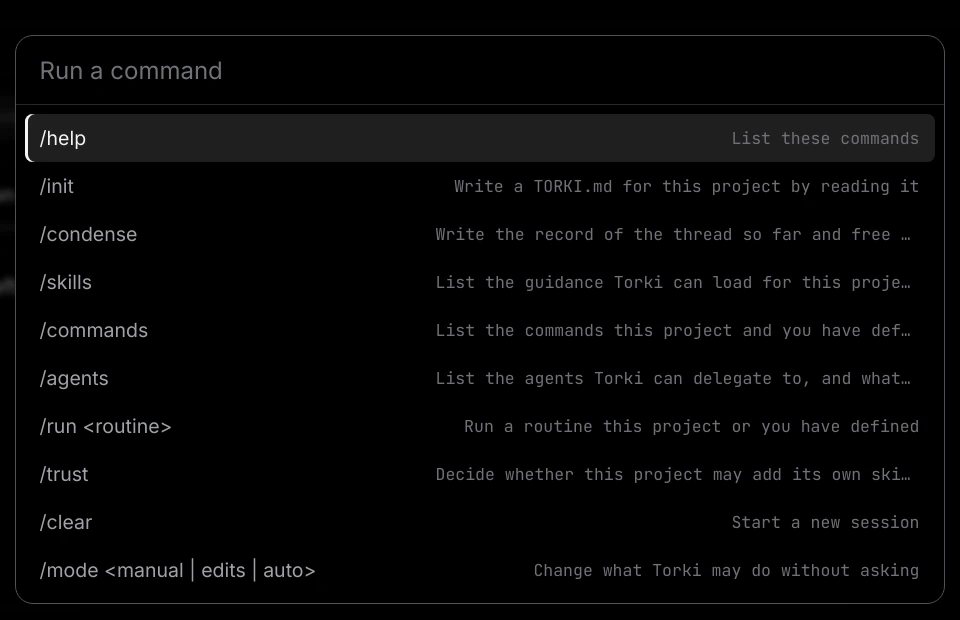
A name that does not exist gives "No command called /x. Type / to see them."
Your own commands
A command is a prompt you are tired of retyping. Create .torki/commands/<name>/COMMAND.md in a project, or the same path under ~/.torki to have it everywhere. Give it a name and a description at the top, then the prompt. In the prompt, $ARGUMENTS is everything typed after the command, and $1, $2 are the individual words. When you run it, the full prompt goes into the composer and is sent, so the conversation shows what was actually asked. Run /commands with none defined and Torki shows a worked example.
A command cannot take the name of a built-in one: /clear always starts a new session.
Routines
A routine is a job with several steps, written down once. Create .torki/routines/<name>/ROUTINE.md (or the same under ~/.torki) with a name, a description and a list of steps, then type /run <name>. /run on its own lists the routines you have.
Your own specialists
Add .torki/agents/<name>/AGENT.md, or the same under ~/.torki. A specialist with no tools listed gets the read-only set; one that should write files must also name the folders it may write to. Tools no specialist may hold, such as running commands, are removed, and /agents lists anything it removed or could not load under "Not loaded, or trimmed".
Project instructions: TORKI.md
TORKI.md at the root of your project tells Torki how the project works — the real build and test commands, the conventions you follow, the parts not to touch. Torki reads it on every turn, so you do not have to repeat yourself. Torki reads the first 12,000 characters; anything past that is cut off.
For instructions that apply to every project, put them in ~/.torki/TORKI.md. Where the two disagree, the project's file wins.
Have Torki write it
- Open the project and type
/init. - Torki reads the project first — its build files, tests and conventions — and drafts a
TORKI.md, or improves the one already there. - Approve the write. Writing
TORKI.mdasks in every permission mode, and the card's detail starts "Torki's own instructions —". - Type
/trust onso Torki reads the file it has just written (see below).
Trusting a project
A project's TORKI.md and its .torki folder go straight into Torki's instructions. In your own project, that is the point. In a repository you have just cloned, it means whoever wrote it gets to tell Torki what to do. So Torki reads none of them until you decide, once, for that folder. Until then, if you ask about the project's rules, Torki tells you plainly that the project has instructions it is not allowed to read until you trust it, rather than guessing at them.
The trust card
When you open a folder that has its own instructions and you have not decided yet, a card appears in the conversation: This project wants to add its own instructions. It lists what it found as counts and paths only — for example "1 project instruction file" (TORKI.md) or "1 skill" (.torki/skills/) — so nothing on the card is written by the repository.
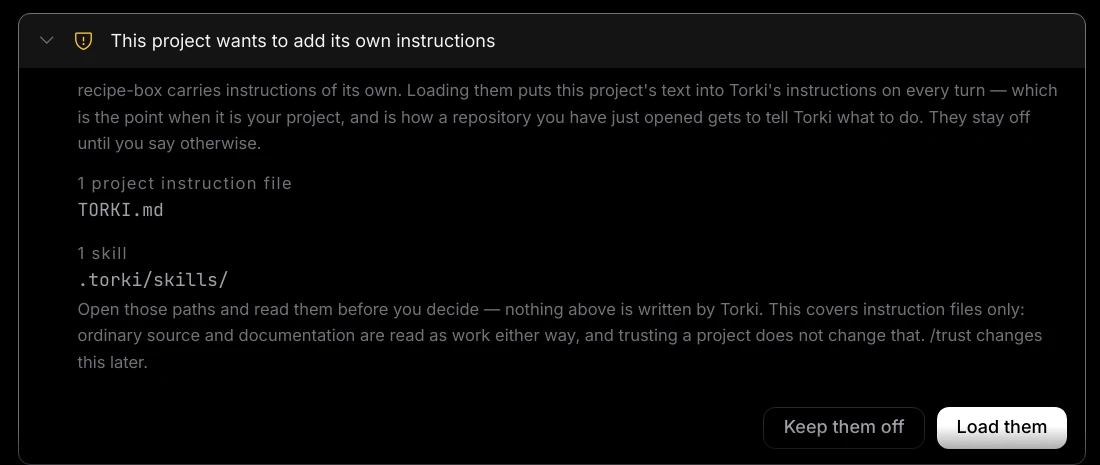
- Open the listed files and read them.
- Click Load them to trust the project ("This project can now add its own instructions."), or Keep them off ("This project's instructions stay off.").
Ignoring the card is the same as keeping them off.
Change your mind with /trust
/trustshows whether this project's instructions are ON or OFF, and what it would load./trust onloads them for this folder./trust offturns them off again. Your own instructions in~/.torkiand the built-in ones still apply.
What trust covers
- Per folder, on this Mac. Once you trust a folder, Torki remembers it, including after a restart.
- The folder, not each file. Once you trust a project, later changes to its
TORKI.mdor.torkiare trusted too. If you pull changes from other people, look at those files again, or run/trust off. - Instruction files only. Ordinary source code, READMEs and documentation are read as part of the work whatever you decide.
- A trusted project's definitions win by name over yours and the built-in ones.
Good to know
- Torki never changes its own instructions silently. Any write, move or delete of
TORKI.mdor anything in.torkiasks you, in every mode, every time. - Specialists have step budgets — from 16 steps for dependency-scout to 40 for migration-runner. A big job may come back partly done; specialists are told to report what they did and what they could not do.
- Definitions that could not be loaded are listed with the reason by
/agents,/skills,/commandsand/run, under "Not loaded". - Projects on a server. Torki is told by the app itself when the open project is on a server, where it is and what runs there. This is separate from
TORKI.mdand needs no trust. The tests test-writer runs, and the checks migration-runner runs, then run on the server. See Working on a Project on a Server.
FAQ
Torki says my project has instructions it is not allowed to read.
The project has not been trusted yet. Read its TORKI.md and .torki folder, then type /trust on if you are happy with them.
I wrote a TORKI.md but Torki is ignoring it.
Run /trust. If it says project instructions are OFF, type /trust on. Also check the file is at the root of the open folder and named TORKI.md.
Do I need to trust a project for my own skills and commands to work?
No. Anything in ~/.torki on your Mac is always loaded. Trust only decides whether the project's own .torki folder and TORKI.md are used.
Can a specialist run my tests?
test-writer can run the project's tests, and migration-runner can run type checks and linting. Neither can run any other command.
Can I make one of the built-in specialists do more?
Write your own in ~/.torki/agents/<name>/AGENT.md. It can have more steps (up to 60) and different folders, but it can never run arbitrary commands, delete, move or commit.