Torki Code
Getting Started with Torki Code
Overview
Torki Code is the Code half of Torki AI for Mac. You point it at a folder on your Mac, or on a server you reach with ssh (see Working on a Project on a Server), and Torki works inside that folder: it opens and reads the files before it answers, writes and edits files, runs commands and tests, starts your development server and looks at the page, and stages and commits with git. You decide what it may do without asking you first. Pulling, pushing and switching branches are there for you too, as buttons you click.
It comes with a file tree, an editor, search, Source Control, saved conversations, a terminal and a browser panel for your local pages. The editor is a light one for reading and quick changes; it is not a full IDE.
What it needs
Torki AI for Mac 1.10.8, signed in to your Torki account. Every plan can use Torki Code. Each request you send uses one message from your plan's allowance, the same allowance as chat on Home and the web — see Usage, Plans and the Context Meter.
Get started
1. Switch to Code
Click Code at the top of the sidebar, or press ⌘2. If you are signed out, Torki sends you back to Home to sign in.
2. Follow the tour
The first time you reach Code, a short tour of eight cards appears. Click Show me on the first card, then Next and Back (or →, Enter and ←). The × on each card, or Esc, skips the rest.
- This is Torki — the two halves, Home and Code.
- Point Torki at a folder — rings the Open folder… button and waits ("Waiting for a folder") until you open one.
- You decide what happens without asking — the three permission modes.
- What "Guarded" means — the boundary around your folder.
- What leaves this machine — what Torki sends to its servers.
- Ask about the code — invites you to ask a question. "Try it now; the tour will wait."
- How hard it should look — the effort levels Brief, Balanced and Thorough.
- That is the tour — click Start working.
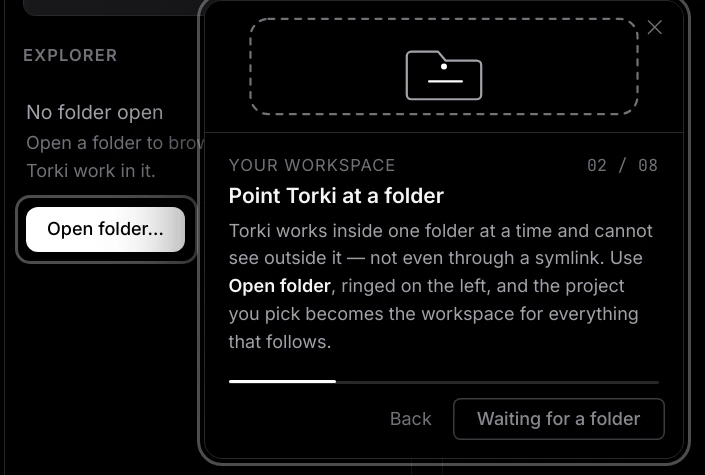
One tour card overstates Full auto. It says "Full auto asks about nothing". In fact Full auto still asks before adding a dependency, before changing Torki's own instructions (TORKI.md or the .torki folder), before opening the built-in terminal, before every command on a Mac where commands cannot be confined, and before every command on a server you have not trusted. See Permission Modes and Approvals.
To see the tour again, open Settings (the gear in the sidebar) → Getting started → Take the tour again and click Start tour.
3. Open a folder
Click Open folder… in the Explorer, choose your project in the "Open workspace folder" window and click Open. Torki shows "Opened" with the folder's name, and the Explorer fills with its files. Other ways to open one are described under Opening a folder below.
4. Ask your first question
Click the box at the bottom ("Describe a task, or ask about this code"), type a question such as "What does this project do, and where is the money maths?" and press Enter. See Asking your first question below for what happens next.
5. Give it your first task
Describe a change, for example "Add a Clear all expenses button to the expenses list. Ask me to confirm before clearing, keep the people, and add a test for it." In Manual mode, where you start, Torki asks before every file it writes and every command it runs. See Giving your first task below.
Opening a folder
Torki works inside one folder at a time. Any of these opens one:
- Open folder… in the Explorer when no folder is open. Below it, Recent lists up to 5 folders you used lately; click one to reopen it.
- The folder chip in the composer (it reads "no folder", or the folder's name).
- The location chip in the composer (it reads Local): This Mac opens a folder on this computer, and a server in its list opens a folder on that server. See Working on a Project on a Server.
- The + button in the composer → Open a folder… (Open a different folder… once one is open).
- ⌘O, or Open folder… in the command palette (⌘⇧P).
- Clicking the folder path in the status bar.
- Settings → Workspace → Open folder: type a path (
~works, as in~/projects/my-app) and click Open.
To start where you left off, set Settings → Workspace → Reopen last folder to When Torki starts. Choose Start with no folder to begin empty. Only folders on this Mac are reopened this way; reopen a server project from the location chip's menu.
If the project is in Documents, Desktop or Downloads, or on an external drive, macOS may ask whether Torki AI may use that location. Allow it; Torki only reads and writes inside the folder you choose.
What opening a folder changes
- A new conversation starts. Your earlier conversations for each folder are kept in Sessions.
- Terminals, background servers Torki started, and any "Always allow" choices you made on approval cards are reset.
- File tabs with unsaved changes stay open, and Torki tells you so. Copy anything you need before closing them.
To close the folder without opening another, use Close workspace in the command palette. If files are unsaved it offers Save all and close, Close without saving and Cancel.
You can chat with no folder open, but that conversation is not saved. If you ask for something that needs files while no folder is open, Torki can create a new project in ~/Torki Projects and open it. In Manual mode it asks first, with a "Write to a file" card that reads "Create a new project at …".
Finding your way around the window
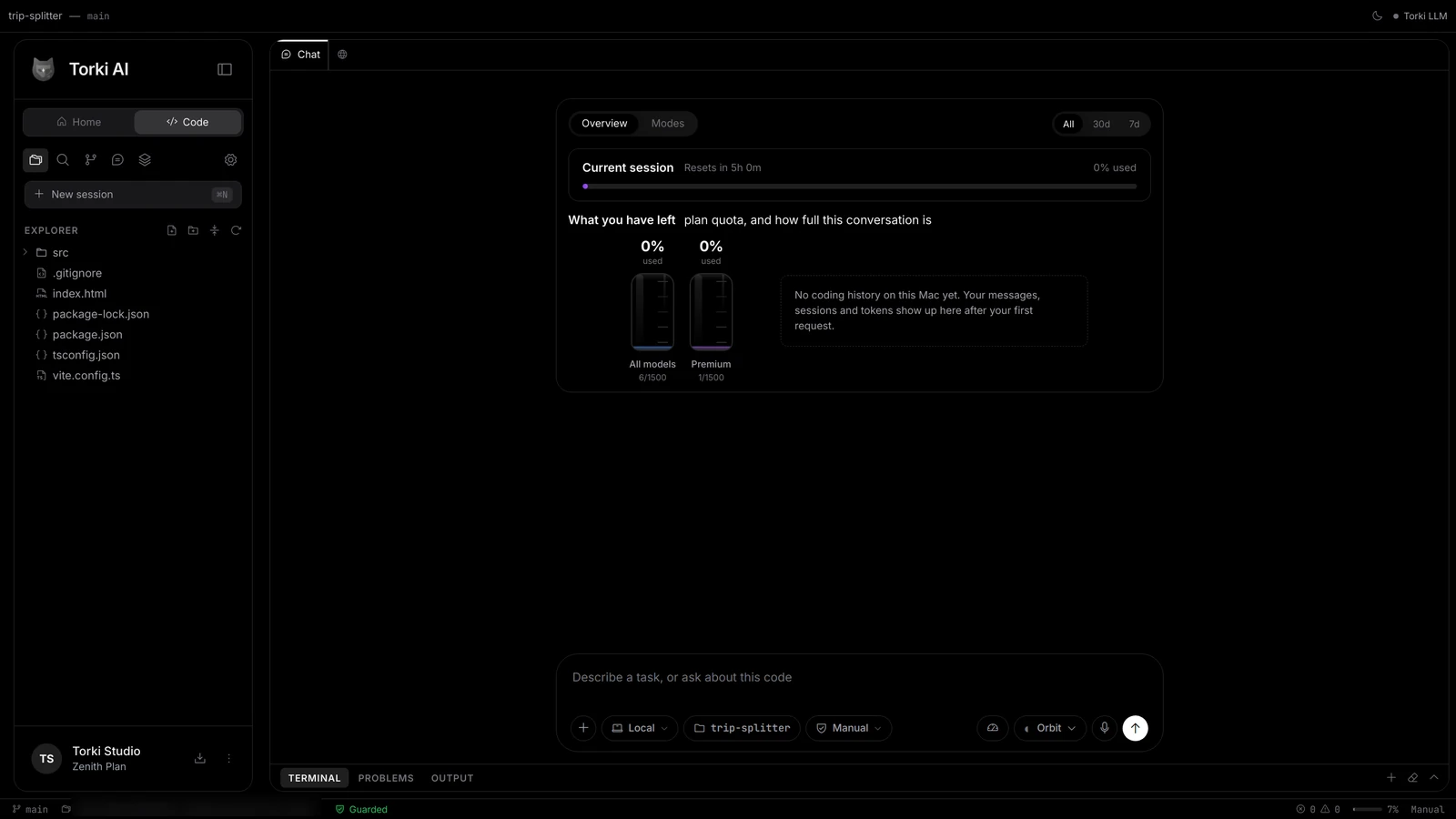
Title bar
On the left, the folder's name and its git branch. On the right, a moon or sun button that switches the theme, and the model status, "Torki LLM", with a dot. While Torki works the dot is labelled "Thinking", "Running" or "Working", or "Error" if something went wrong.
Sidebar
Below the Home | Code switch is a row of icons, each opening a panel in the sidebar:
- Files — the Explorer, your folder's file tree. See The Editor, Explorer and Search.
- Search — search inside your files (⌘⇧F).
- Source Control — changes, staging and commits; a badge shows how many files changed. See Source Control and Git.
- Sessions — your saved conversations for this folder. See Sessions, History and the Ledger.
- Ledger — what Torki has made in this project: files, images, previewed pages, commits and plans.
- Settings — the gear at the end of the row.
New session (⌘N) starts a fresh conversation. At the bottom are the account chip and, when one has downloaded, the update card.
The work area
- Tabs along the top: Chat always comes first, then any files you open. The globe at the end shows or hides Horizon, the browser panel for your local pages — see Previewing Your App in Horizon.
- The conversation, under the Chat tab.
- The composer, where you type. On its bottom row: + (tools and attachments), the location chip (Local, or the server's name), the folder chip, the permission chip (Manual, Accept edits or Full auto), then on the right the effort button (Balanced by default), the response mode (Orbit by default), the microphone for dictation (shown when dictation is available), and Send. In a narrower window some labels shrink to icons; hover over one to see its setting, for example "Effort: Balanced". See Asking Questions and Giving Tasks.
- The bottom panel: Terminal, Problems and Output. ⌘J shows or hides it. See Terminal, Problems and Output.
Status bar
On the left: the branch (click it to switch to another branch or create one), the folder path (click it to open a folder; for a server project it reads the server's name and the path there), the green Guarded shield, a warning if you are "Not signed in" or the "Model unreachable", and, when the conversation is out of sight, a short line saying what Torki is doing — click it to go back to the conversation.
On the right: counts of errors and warnings (click to open Problems), the context meter (how full this conversation is, as a percentage), the permission mode (click it to cycle through the three), the cursor position, and the file's language.
What "Guarded" means
Every read, write and delete Torki makes is checked against your open folder before it happens. Anything that resolves outside the folder, including through a symlink, is refused rather than asked about. Commands are different because they run in a real shell: on a Mac, Torki confines the writes of the commands it runs to your folder (plus temporary and package-cache folders), though a command can still read files elsewhere. Settings → Workspace → Commands shows "confined to this folder". Torki's file tools also never read or write credential files such as .env, .pem and .key files. Click the shield and Torki explains this in the conversation. More in Guarded Mode and Privacy.
Asking your first question
Ask the way you would ask a colleague: "What does this project do?", "Where is login handled?", "Why does the total come out one cent wrong?". Torki opens and reads the files before it answers; it does not guess from file names.
While it works you see, in order:
- Thinking with a running timer, which becomes "Thought for" and the time taken. Click it to expand.
- Step cards for what it did, such as List, Read and Search, each with a time and "done". Click a card to see what went in and what came out.
- The answer, with Copy, Undo a file change (the curved arrow) and Try again under it.
Reading never needs your permission. If Torki wants to run a command to check something — listing files with find, or running the tests — a Run a command card appears in Manual mode. It shows the exact command, "Runs inside" your folder, and on a Mac "Writes are confined to this folder. The command can still READ files elsewhere." Click Approve (Enter) or Deny (Esc). If you deny it, the step card in the conversation reads "Declined. The command did not run." and Torki carries on without it.
Giving your first task
Describe the outcome you want and anything it must respect: "Add X. Keep Y. Add a test." For work across several files, Torki first writes a plan, shown as a Plan card ("Plan · 2 of 5") whose steps tick off as it goes.
In Manual mode, every file it wants to write appears as a Write to a file card showing the change: "New file · 138 lines", or "1 line added · 1 line removed" with the lines in green and red.
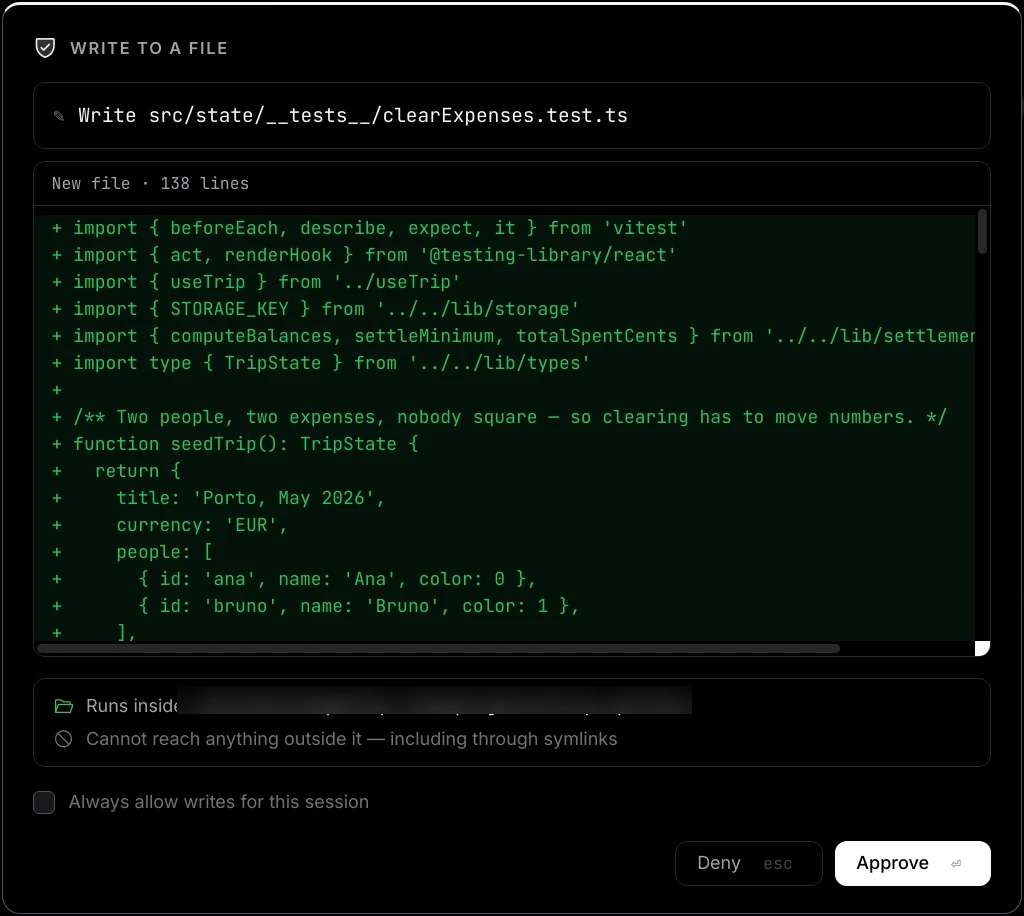
- Tick Always allow writes for this session to let Torki's later writes through without asking. This lasts until you open another folder or restart the app.
- When more than one request is waiting, the card shows "1 of 2".
- Torki often runs the tests, starts your development server and looks at the page before it says it has finished. Those steps appear as cards such as Test, Start and Look at, with a picture of the page under "SAW".
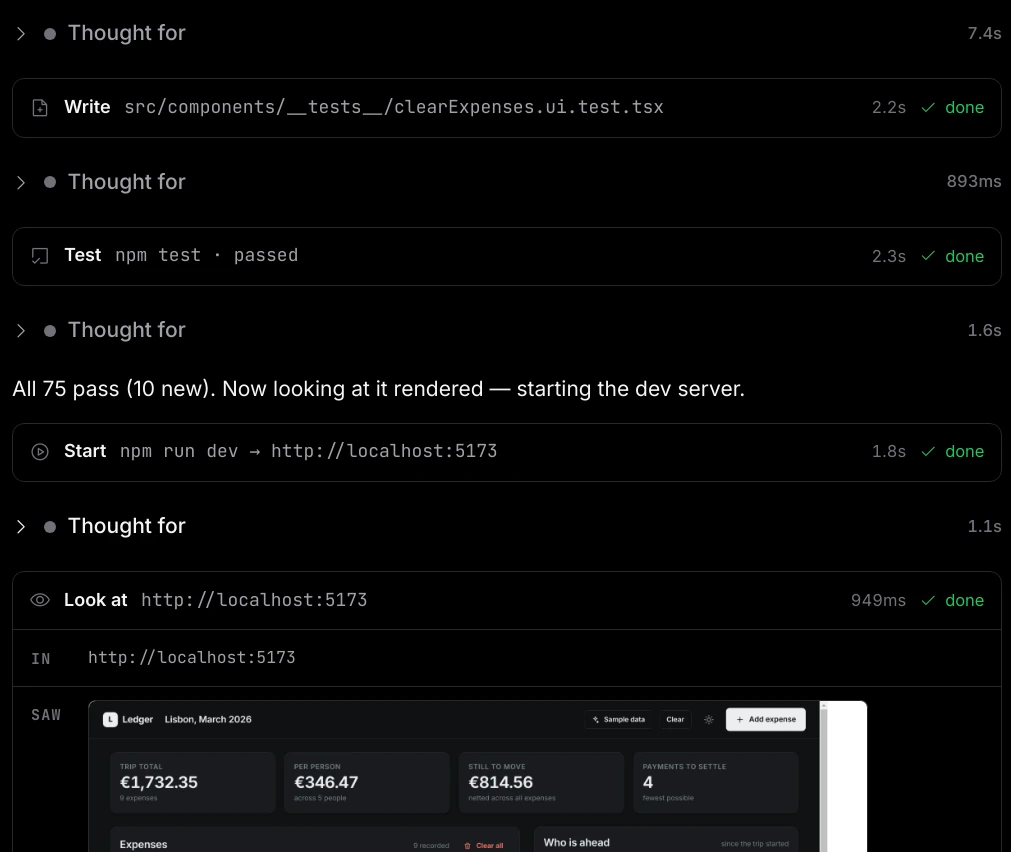
When it is done, review the changes in Source Control; click a file to see its diff. Everything Torki wrote is also listed in the Ledger.
Want a change undone? Click the curved arrow under any answer (Undo a file change). It lists the file changes in this folder, newest first; choose one to put the earlier version back. Putting a file back is listed too, so you can undo that as well. Your own saves, renames and deletes in the Explorer are listed alongside Torki's. It keeps the last 40 changes, for files up to 8 MB; changes made by commands or by git are not in it. Commit good work as you go so git can take you back further. See Undoing a Change.
To stop Torki at any point, click the stop button (■) where Send was, or press Esc.
Where to go next
- Asking Questions and Giving Tasks — the composer in full, attachments, modes, effort and errors.
- Permission Modes and Approvals — Manual, Accept edits and Full auto, and every approval card.
- Guarded Mode and Privacy — the folder boundary and what leaves your Mac.
- Usage, Plans and the Context Meter.
- The Editor, Explorer and Search, Source Control and Git, Terminal, Problems and Output and Previewing Your App in Horizon.
- Sessions, History and the Ledger.
- Working on a Project on a Server.
- Specialists, Skills and Project Instructions.
- Keyboard Shortcuts and Settings and Troubleshooting Torki Code.
Good to know
- Your permission mode is remembered between launches. New installs start on Manual, but if you switched to Full auto last time, you are still on Full auto. Check the chip in the composer before a big task.
- Torki cannot create or switch git branches for you on a Mac. The commands it runs cannot write to the
.gitfolder, sogit checkout -b, tags and stash fail for it. Torki can still stage, diff and commit with its own git tools. You can switch or create branches yourself: click the branch name in the status bar, or use Switch branch… or Create branch… in the command palette. For tags and stash, use the built-in terminal, which is yours and not confined. - If a project carries its own instructions (a
TORKI.mdfile or a.torkifolder), Torki does not read them until you allow it. A card, "This project wants to add its own instructions", offers Keep them off or Load them. See Specialists, Skills and Project Instructions.
FAQ
Can Torki see files outside the folder I opened?
Its file tools cannot: anything outside the folder is refused. Commands Torki runs can read elsewhere on your Mac but, on a Mac, can only write inside the folder and temporary or cache folders. Every command asks first in Manual and Accept edits. For a project on a server, commands run on the server and are not confined there, so Full auto also asks before each one until you trust that server.
Can I open two projects at once?
No. Torki Code works on one folder at a time. Opening another folder starts a new conversation; the old one stays in Sessions.
Where did my conversation go after I opened another folder?
It is saved in Sessions for the folder it belonged to. Reopen that folder and click it in Sessions. Conversations with no folder open are not saved.
How do I see the tour again?
Settings → Getting started → Take the tour again → Start tour.
Does Torki Code work offline?
No. Torki runs on Torki's servers, so you need an internet connection.
Can it open a project on a server or clone from GitHub?
Servers, yes: click Local under the message box and choose a server, or Add a server…. The server must accept ssh from this Mac and have python3. See Working on a Project on a Server. Clone from GitHub… is in the same menu but is not switched on yet. To clone a repository, run git clone in the built-in terminal and then open the folder.