Torki Code
Asking Questions and Giving Tasks
Overview
Everything you ask Torki Code goes through the composer at the bottom of the Code window. You can ask a question about the code, or give Torki a task and watch it work. This article covers the composer in full — attachments, the + menu, response modes, effort and dictation — then how to read the conversation, the errors you may see, and how long tasks behave.
New to Torki Code? Start with Getting Started with Torki Code.
What it needs
Torki AI for Mac 1.10.8, signed in. Each request you send uses one message from your plan's allowance. Stellar and Cosmos need Lite or above. Attaching PDFs, Office documents, photos and recordings is described here for 1.10.8; on an earlier version it may not work, so let the update install first.
Get started
1. Type your request
Click the box that says "Describe a task, or ask about this code" and type. Enter sends; ⇧Enter starts a new line. The box grows as you write.
2. Add files if they help
Drag files onto the window, paste them, or use + → Add files or photos. See Attaching files below.
3. Check the chips
Before a bigger task, glance at the composer's bottom row: where the project is (Local, or a server's name), the folder Torki will work in, what it may do without asking (Manual, Accept edits or Full auto), how long it keeps going (Brief, Balanced or Thorough) and the response mode (Pulse, Orbit, Stellar or Cosmos).
4. Send, and answer what Torki asks
Press Enter or click Send (↑). Depending on your permission mode, approval cards appear for writes and commands; answer them with Approve (Enter) or Deny (Esc). See Permission Modes and Approvals.
5. Stop it if you need to
While Torki works, Send turns into a stop button (■) and the composer reads "esc to stop". Click it, or press Esc.
The composer
Besides plain text, two characters open a list:
- / as the first character opens the list of commands, such as
/help,/condense,/clearand/mode. See Specialists, Skills and Project Instructions for the full list. - @ after a space opens "Mention a file", a list of your project's files to point Torki at.
The bottom row, left to right:
- + (Tools) — attachments and a few shortcuts. See below.
- The location chip — Local ("This project is on this Mac"), or the name of the server the project is on. Its menu opens a folder on this Mac or on a server. See Working on a Project on a Server.
- The folder chip — the open folder, or "no folder". Click it to open a folder.
- The permission chip — what Torki may do without asking. Its menu, headed "WHAT TORKI MAY DO", lists Manual, Accept edits and Full auto with what each one means; press 1, 2 or 3 while it is open to pick one. You can change it mid-task.
- The effort button — how long Torki keeps working.
- The response mode — Orbit unless you change it.
- The microphone — dictation, shown when it is available.
- Send (↑), which becomes Stop (■) while Torki works.
The row stays on one line except in the very narrowest chat column, where Send moves to a line of its own. As the window narrows, the labels shrink to icons, in this order: effort, the permission chip, the location chip, the response mode and the folder chip. Hover over one to see its setting, for example "Effort: Balanced" or "Permissions: Manual". Send and the microphone stay at the bottom right.
Only one of these menus is open at a time: opening one closes the others, and Esc closes the one that is open.
The + menu
Click + in the composer:
- Add files or photos — opens the Mac file picker.
- Mention a file — the same list as typing @.
- Run a command — the same list as typing /.
- Open a folder…, or Open a different folder… when one is open.
If a grey note under Add files or photos says that PDFs, HEIC and TIFF photos and recordings "are read with a small helper that is missing from this copy of the app", your copy of Torki AI is damaged or incomplete. A fresh download from torkiai.com puts the helper back.
Attaching files
There are three ways to attach a file to your message:
- Drag and drop anywhere over the Code window. A panel reads "Drop to attach". Dropping a file on Home switches to Code.
- Paste files into the composer.
- + → Add files or photos.
Each file appears as a chip above the box, showing what it is and its size, for example "Word document · 12 KB". While Torki reads it, the chip says so ("Reading…", "Reading the words out of …", "Taking pictures out of …"). Click the × on a chip to remove it.
What you can attach
- Images, such as screenshots and photos. They are scaled down to 1,400 pixels on the longest side before they are sent. Drag a photo out of the Photos app to attach it.
- Text and code files:
.txt,.md,.json,.js,.ts,.css,.html,.py,.log,.csv,.ymland.yaml. - Documents: Word (
.docx), Excel (.xlsx), PowerPoint (.pptx), OpenDocument text (.odt) and.rtf. Torki turns them into text on your Mac and sends the text. - PDFs. Torki uses the PDF's own text, or reads a scanned PDF with the Mac's text recognition (up to 20 pages). A note says which it used.
- HEIC and TIFF photos, converted to JPEG on your Mac.
- Recordings: video (
.mov,.mp4,.m4v) and sound (.m4a,.mp3,.wav,.aac,.aif,.aiff,.caf), up to 2 GB.
Recordings
From a video, Torki takes 4 still pictures (6 at most) and sends those. If the recording has sound, Torki asks first: "To write out what is said in it, Torki sends the sound track to be turned into text. Include the speech?" Confirm to include the speech, or click Cancel to send the pictures on their own. If you include it, Torki remembers that and does not ask again; if you cancel, it asks again next time. Speech is written out for the first 5 minutes at most.
A recording must come from a file on disk. If you drag one from somewhere that has no file behind it, save it first and then drag the file in.
Limits
- 8 files per message. Past that: "Up to 8 files at a time".
- 8 pictures per message, counting photos, screenshots and the stills taken from a video (a video usually takes 4 of the 8). Older pictures in the conversation stop being sent once newer ones fill the 8, and a note tells you how many were left out.
- Text is cut at 120,000 characters. Torki says "… is longer than Torki attaches. The first 120,000 characters go with the message; the rest do not."
- Documents up to 12 MB. A larger PDF, up to 64 MB, can be read if you save it inside your project folder and ask Torki to read it by name.
What it cannot read
- The old Office formats
.doc,.xlsand.ppt. Save them as.docx,.xlsxor.pptxfirst. - Other video formats, such as
.mkv,.webmand.avi. Convert them to.mp4or.mov. - Other binary files: "Torki cannot read …: it is not a text file."
Wait for the chips to finish. If you send before a file has been read, Torki tells you it "had not finished being read, so it is not in this message". There is no Photos library picker in 1.10.8; drag the photo out of Photos instead.
Response mode
The mode button (◐ Orbit by default) opens a menu headed "RESPONSE MODE":
- Pulse — Quick responses.
- Orbit — Reliable & capable.
- Stellar — Deep reasoning.
- Cosmos — Maximum depth.
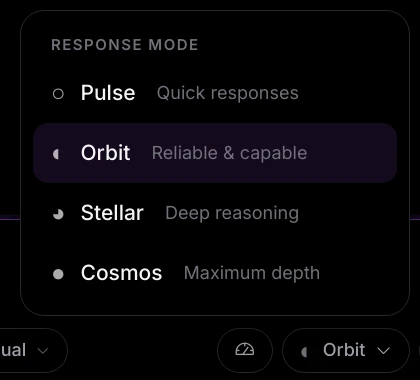
On the Free plan, Stellar and Cosmos are marked "Lite+", and choosing one shows "Stellar is on Lite and above." (or Cosmos). See Understanding AI Modes.
Effort: how long Torki keeps going
The effort button (Balanced by default) opens "HOW LONG IT KEEPS GOING", running from "Faster" to "More thorough":
- Brief — "Builds it and shows you. No going back over it."
- Balanced — "Two passes to fix what it sees. The everyday setting."
- Thorough — "Three passes and the longest leash. For work you want finished."
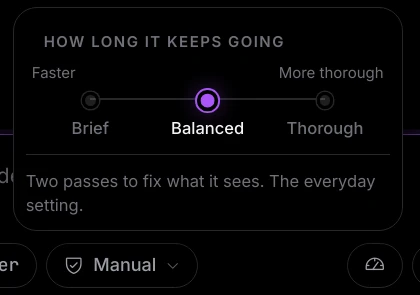
A "pass" is Torki going back over what it built to fix what it finds. Effort also sets how many steps Torki takes before it pauses to take stock — 40 for Brief, 150 for Balanced and 400 for Thorough. At that point it says what is done and what is left, and carries on if the work is unfinished. Effort does not change the price: a request is one message at any setting, but see Long tasks below.
Dictation
The microphone button lets you speak your message instead of typing it. It appears only while Torki's speech-to-text service is available.
- Hold the button while you speak and let go, or click once to start and again to stop ("Stop and transcribe"). A timer counts while you record, and recording stops by itself after 5 minutes.
- The words appear in the composer for you to check before you send.
- The first time, macOS asks for microphone permission.
- Your audio is sent to Torki's servers to be turned into text.
Messages you may see: "Torki needs permission to use your microphone" (allow it in System Settings → Privacy & Security → Microphone), "No microphone is available", "This machine cannot record audio", "Nothing was said" and "Dictation failed".
Reading the conversation
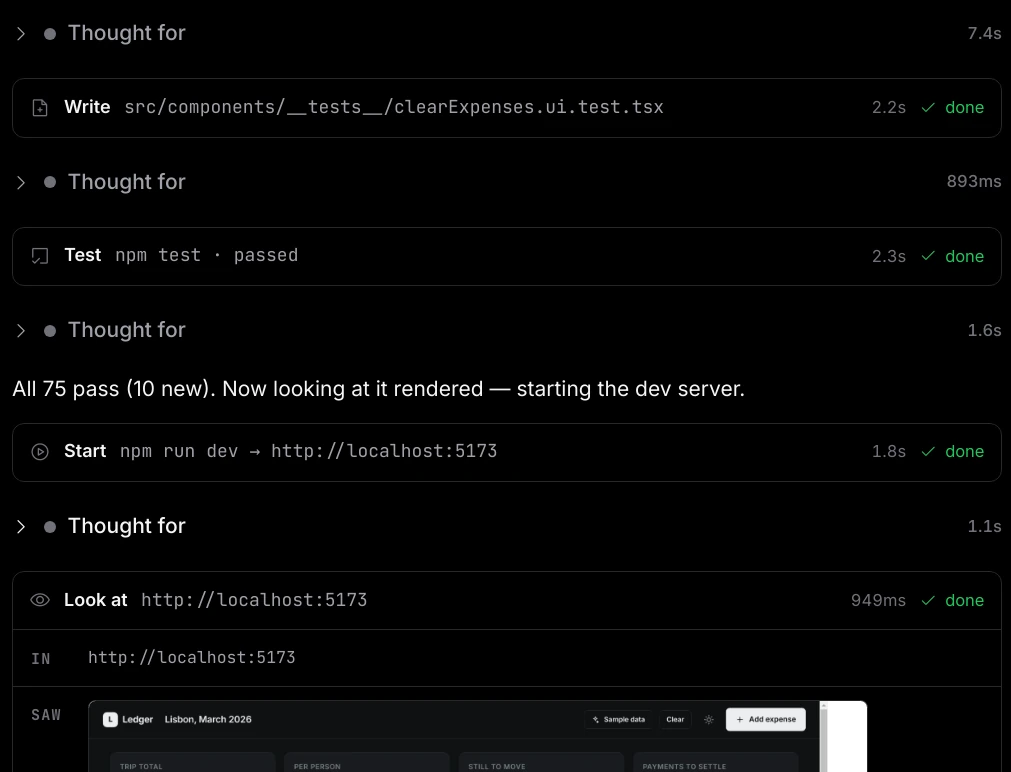
- Thinking — a row with a running timer that becomes "Thought for" and the time. Click it to expand or collapse what Torki was considering.
- Step cards — one for each thing Torki does, with a verb such as Read, List, Search, Write, Edit, Run, Test, Start, Look at, Search web, Commit or Look into (a specialist working on part of the job), what it acted on, a timer and its status: "working", "done", "failed" or "stopped". Click a card to see what went in and what came out; long output shows the last 14 lines and "Show all … lines". Commands end with their exit code. Pictures of pages Torki looked at appear under "SAW" — click one to enlarge it. A few steps, such as checking code, undoing a change or generating an image, show their internal name with a wrench icon.
- Plan card — for larger work, "Plan · 2 of 5" with each step marked done, in progress or waiting.
- Working row — what Torki is doing right now, such as "writing src/App.tsx — 3.2 KB", or "waiting on the model" with a time if the response is slow. If you switch to a file tab, the same line appears in the status bar; click it to go back to the conversation.
- The answer, with Copy, Undo a file change (the curved arrow) and Try again under it. Try again sends the question that answer was for once more, as a new request. Undo a file change lists the recent file changes in this whole folder, newest first, not only that answer's; choose one to put the earlier version back. See Undoing a Change. Code blocks have Copy code.
- Your own messages have Copy and Edit and resend, which puts the text back in the composer to change and send again.
Other things that can appear in the conversation:
- Notices in an info box, such as "This conversation got long — condensing the earliest steps to keep going."
- "This project wants to add its own instructions", when the folder has a
TORKI.mdor a.torkifolder. Choose Keep them off or Load them. - "How is Torki doing this session?" after 8 replies, at most once a session and once every three days. Pick Average, Doing well or Superb, or click × to skip. Only the rating, the app version, the number of turns and the minutes are sent — never the conversation.
- The ↓ button, "Jump to the newest message", when you have scrolled up.
Stopping
Click ■ or press Esc while Torki is working (Esc first closes any menu that is open, without stopping Torki). A "Stopped" message confirms it. What Torki already wrote to disk stays.
- If an approval card for a command, test, check or server is showing, Stop withdraws it and ends the turn.
- A card for a file write, a new folder, a rename, a delete, stopping a server or opening a terminal stays on screen until you answer it. Click Deny and the turn ends.
- Stop does not reach a program that detaches itself from Torki, such as a daemon. Stop it in the terminal or in Activity Monitor.
Errors you may see
When a request fails, the conversation says what happened and what to do:
- "Torki could not be reached." — "Check your connection, then send that again."
- "The connection to Torki dropped before the answer finished." — "Send that again — what Torki already did to your files is still there."
- "Torki took too long to answer and the request was dropped." — "Send that again. If it keeps happening, ask for less in one go."
- "The answer stopped before it was finished." — "Send that again. Anything Torki had already written to disk is still there."
- "Torki failed while answering. This one is on our side, not yours." — "Try again in a moment."
- "Torki is at capacity right now." — "Wait a few seconds and send that again."
- "Your session has expired, so Torki could not send that." — "Switch to Home, sign in, then send it again."
- "This conversation has grown past what Torki can hold at once." — "Torki is condensing it. Send that again when it finishes."
- "Torki was cut off while writing a file, so the change was incomplete." — "Send that again, or ask for the file in smaller pieces."
- "Torki tried to write more than this workspace allows in one go." — "Ask for the change in smaller pieces."
- "Torki stopped part-way through that." — "Send it again — nothing you typed was lost."
Two more can end a step early:
- "Torki used its whole output budget for that step and never made a tool call, so that step applied nothing." Send it again, or ask for one smaller piece of the work.
- "The model returned an empty response twice in a row, so this turn stopped early." Send the request again, or switch response mode.
If you have used all your messages, a card reads "You have used all your messages on" your plan, with when they reset. See Usage, Plans and the Context Meter. For anything else, see Troubleshooting Torki Code.
Long tasks
A request can run for many steps: reading, writing, testing, looking at the result and fixing it. The whole request counts as one message, however many steps it takes — up to 200 model steps. At that point Torki stops with:
"This task has used all 200 model steps one message allows. Send a new message to keep going."
Send a short follow-up such as "carry on where you stopped". The work done so far stays on disk, and the conversation keeps the context. The follow-up is a new message.
- Thorough can reach the 200-step limit before it pauses to take stock, because it allows up to 400 steps. For a very large job, split it into parts and send them one at a time, or use Balanced.
- Long conversations fill up. The context meter in the status bar shows how full the conversation is, and Torki condenses the oldest steps when it gets full. See Usage, Plans and the Context Meter.
- You do not have to watch. If you switch to another app, Torki sends a notification when it needs an approval and, for runs longer than 20 seconds, when it finishes (unless you have turned these down in Settings → Notifications). In Manual mode a long task waits at each approval card, so Accept edits keeps things moving while still asking about commands and deletes.
Good to know
- Torki sends what you typed, your attachments, and what it reads while it works (files it opened, the output of commands it ran, pages it looked at) to Torki's servers. The names of your open file tabs and Horizon pages are sent too, so Torki knows what you are looking at. See Guarded Mode and Privacy.
- Be specific about what must not change: "keep the people", "do not touch the API". Torki follows the brief you give it.
- For a question, Torki reads before it answers. If the answer seems off, ask it which files it read; the step cards show them too.
- Commands Torki runs use the same shell setup as your terminal, so the Node or Python version you choose in your shell's start-up file (with nvm and similar tools) applies to them too. Torki reads that setup once, when it starts. The Output panel says which environment commands run with.
- For a project on a server, Torki's commands, tests and git run on the server. See Working on a Project on a Server.
FAQ
Does a long task use more of my allowance than a quick question?
No. Each request is one message, up to 200 model steps. Generating images uses a separate image allowance.
Can I attach a whole folder?
No. Open the folder instead and Torki can read every file in it.
Can I pick photos from my Photos library?
Not with a picker in 1.10.8. Drag a photo out of the Photos app onto the Code window.
Which question does Try again send?
The question the answer you clicked it under was for. It is sent straight away as a new request, so it uses one message. It does not work while Torki is still busy; wait, or stop it first.
Why is the microphone button missing?
It is shown only while Torki's speech-to-text service is available. Try again later, or type your message.
Can I keep typing while Torki works?
Yes, you can type your next message in the composer, but Send is replaced by Stop until the current request finishes.