Torki Code
Stay Signed In: Bring Your Sign-ins Over
Overview
Horizon, the browser in Torki Code, can open the sites you use already signed in. It copies your sign-ins for the sites you pick from the browser you use every day, so GitHub, Figma or your team's tools open in Horizon the way they open there.
You choose every site. Only those sites' sign-ins are copied, into your Torki account's Horizon on this Mac. Your passwords, history and bookmarks stay where they are, and nothing is sent to Torki's servers.
What it needs
Torki AI for Mac 1.10.22, signed in to Torki. Sign-ins are kept per Torki account, so the app asks you to sign in first: "Sign in to Torki first. Sign-ins are kept per Torki account, and a signed-out browser forgets everything when you quit."
One of these browsers on this Mac: Chrome, Edge, Brave, Arc, Vivaldi, Chromium or Firefox. Safari is listed but marked "Locked by macOS": macOS keeps Safari's sign-ins inside Safari's own storage, where no other app can read them.
Three ways in
1. The card on the start page
A new Horizon tab shows a card such as "Stay signed in to GitHub, Vercel, Figma and 5 more", with the browser's logo and the sites' own icons. Underneath, "From Chrome · profile" opens a menu of every browser and profile on this Mac, with how many sites each would suggest; choose another to change the card.
- Import brings the suggested sites over in one click.
- Review sites opens the list inside the card, so you can tick and untick before importing.
- The × closes the card for good. You can still import from the menu or Settings.
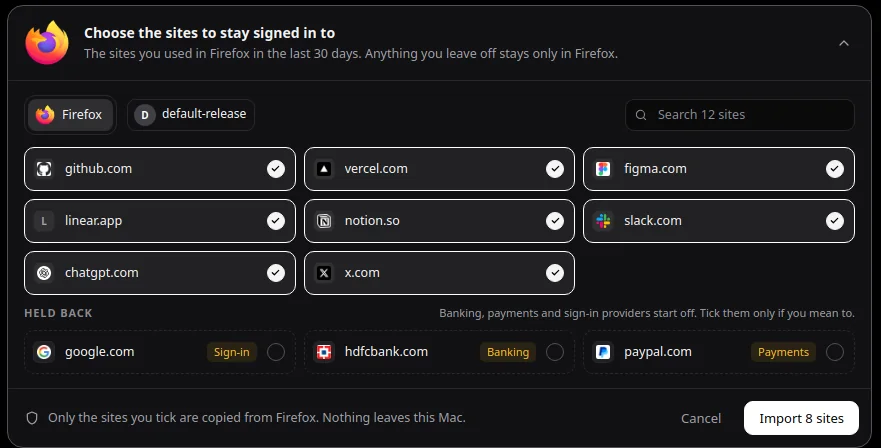
The card appears while you are signed in to Torki and a browser on this Mac has sites to suggest, until you import once.
2. The "Stay signed in" tab
Choose Bring sign-ins from your browser… in Horizon's ⋯ menu, or in Settings → Horizon. Horizon opens a tab named Stay signed in (or uses the tab in front, if it is empty) and walks you through two steps.
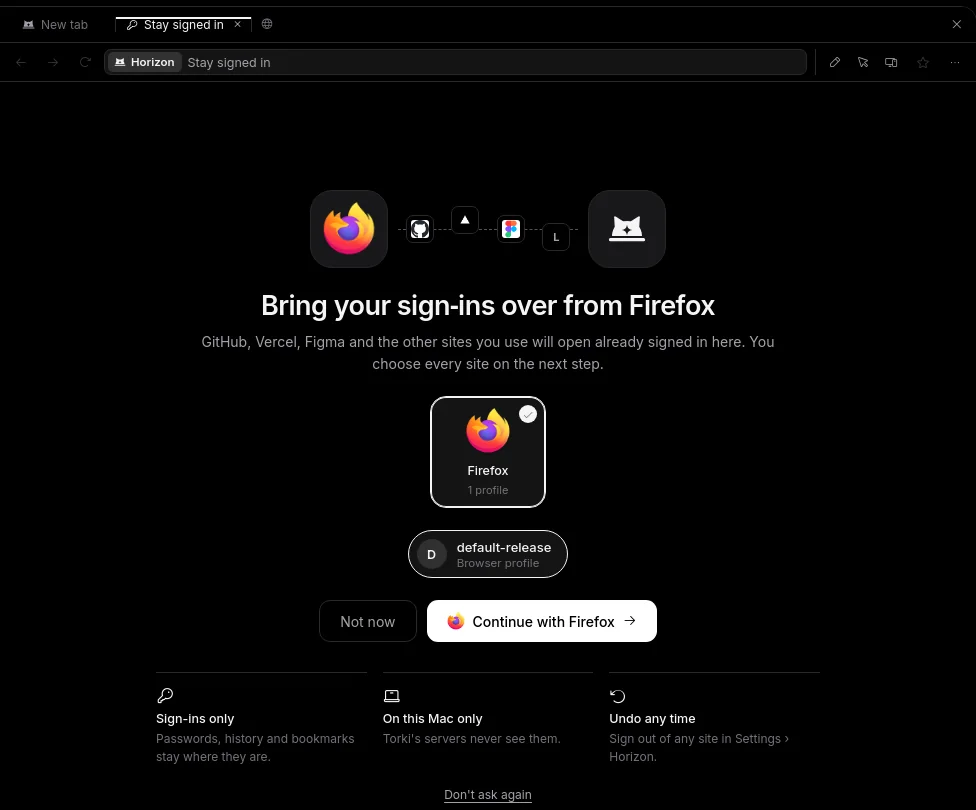
- Pick the browser and profile. The tab is headed "Bring your sign-ins over from browser". Your everyday browser comes first. Each profile shows its name and, when the browser shows one, its email address; that stays on this Mac. Click Continue with browser. Not now closes the tab, and Don't ask again also stops the start page offering.
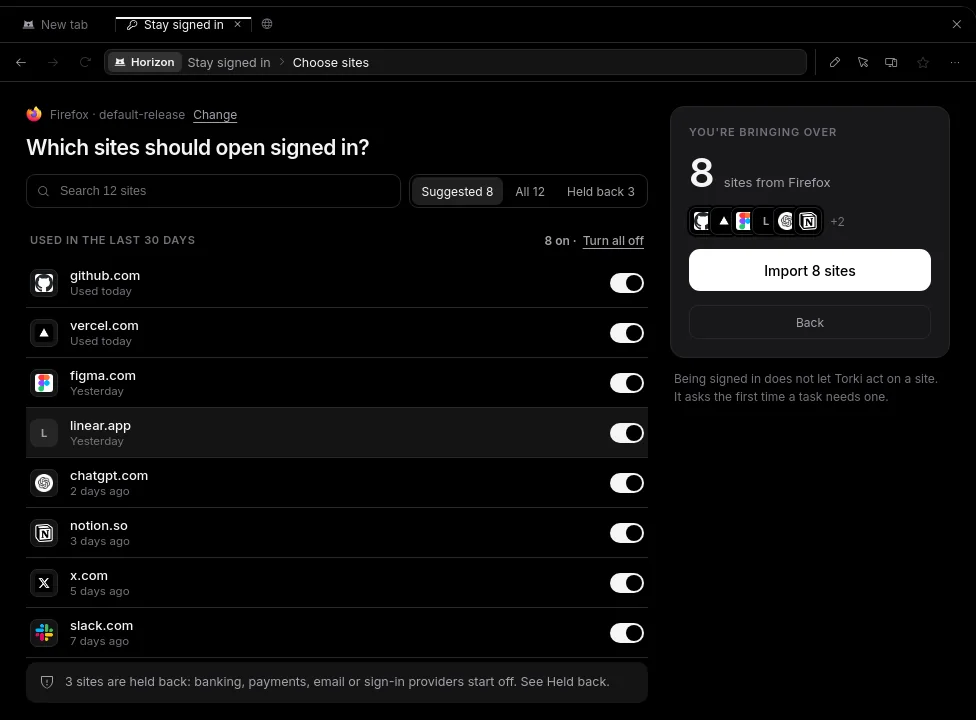
- Choose the sites ("Which sites should open signed in?"), then click Import N sites. Change or Back returns to step 1.
3. The column beside a page
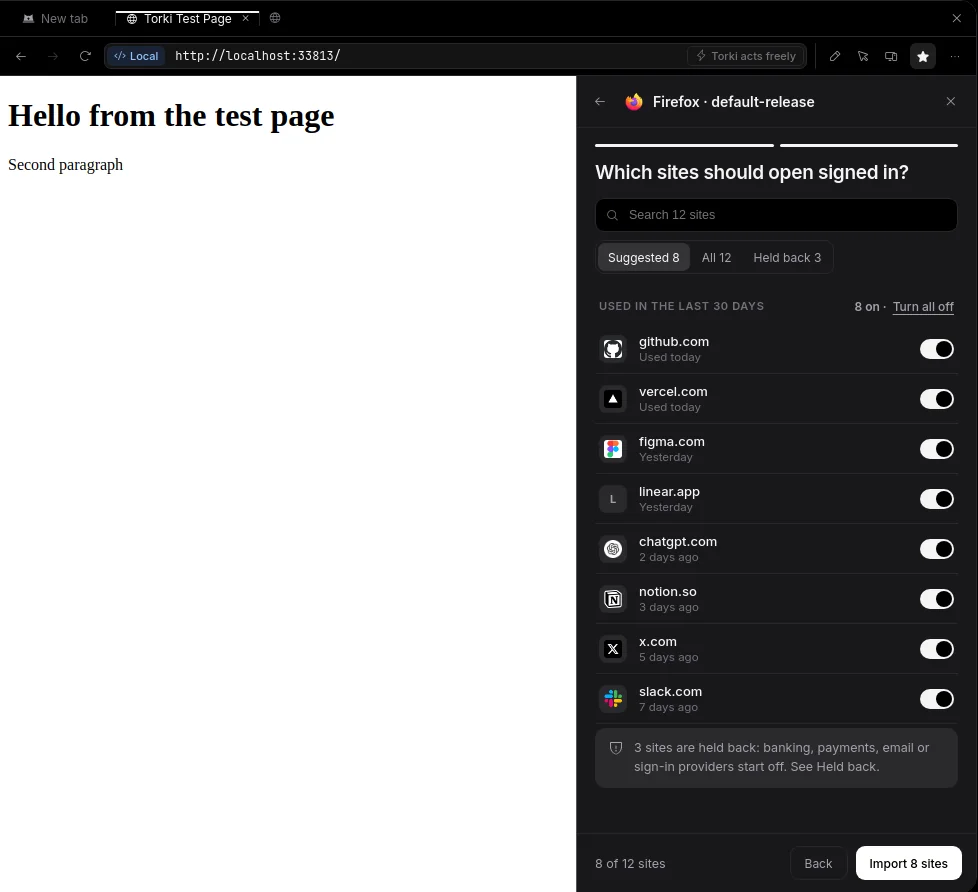
Choose Bring sign-ins from your browser… in the ⋯ menu while a web page is open and the panel is wide enough, and the same two steps open in a column on the right, with the page still beside it. In a narrower panel you get the tab instead.
Which sites are offered
Horizon lists only sites that the browser profile is signed in to and that you opened yourself in that browser in the last 90 days. A site that only ever loaded inside other pages, such as an advertising network, never had a visit of its own, so it is not offered.
- One row per site.
accounts.google.comandmail.google.comare both google.com, and you tick it once. - Suggested — the sites you used in the last 30 days. They start switched on, except the ones held back.
- Held back — banking, payments, email and government sites, and sign-in providers whose one sign-in opens everything else (Google, Microsoft, Apple and Yahoo accounts, and services such as Okta and Auth0). They start off: "These can move money, read your mail, or sign you in to everything else, so they start off." Switch one on only if you mean to.
- All — every site in the list, including the ones you last opened between 30 and 90 days ago, which start off.
- Search the list, or use Turn all on and Turn all off on the suggested group.
If Horizon cannot read the browser's history, nothing is suggested or ticked: "Horizon could not read which sites you use in browser, so none are ticked." Every site the profile is signed in to is then listed, and you tick the ones you want.
The one question from macOS
Chrome, Edge, Brave, Arc, Vivaldi and Chromium lock their sign-ins with a key kept in your Mac's Keychain. When you import from one of them, macOS asks, in its own window, whether Torki AI may use that browser's "Safe Storage" key, for example "Chrome Safe Storage". Horizon explains it while the window is up ("One question from macOS"):
- Type your Mac password — the one you unlock this Mac with. It goes to macOS, never to Torki.
- Choose Allow.
Choose Allow, not Always Allow. In the app's words: "Why not Always Allow? It would let Torki AI open those sign-ins again later without asking you. Allow keeps you in charge: every new import asks again."
If you chose Deny by mistake, nothing was copied. Press Try again and macOS asks once more.
Firefox needs no macOS question: the import runs as soon as you click Import.
What is read, and what is copied
To show you the list
- Which browsers and profiles are on this Mac, with each profile's name and email address as the browser shows them.
- The list of the profile's cookies: which site each belongs to and when it was last used, but not what is in them. Nothing is unlocked at this stage, so macOS does not ask.
- From the browser's history, only the site of each page you opened in the last 90 days, how many times and when. No page addresses, titles or search terms.
- Each site's icon, from the browser's own icon store on this Mac. Nothing is fetched from the internet to draw the list.
Horizon reads a private copy of the browser's cookie, history and icon databases and deletes the copy straight away. Your browser's own files are never changed.
When you click Import
- Only the sites you ticked, and only their cookies that have not already expired, are copied into your Torki account's Horizon on this Mac.
- For Chrome-family browsers, the key macOS gave is used for this import only. Torki does not keep it, so if you chose Allow, importing again means macOS asks again.
- Your passwords, history and bookmarks are not copied. Your other browser is unchanged, and stays signed in.
- Nothing is sent to Torki's servers.
After the import
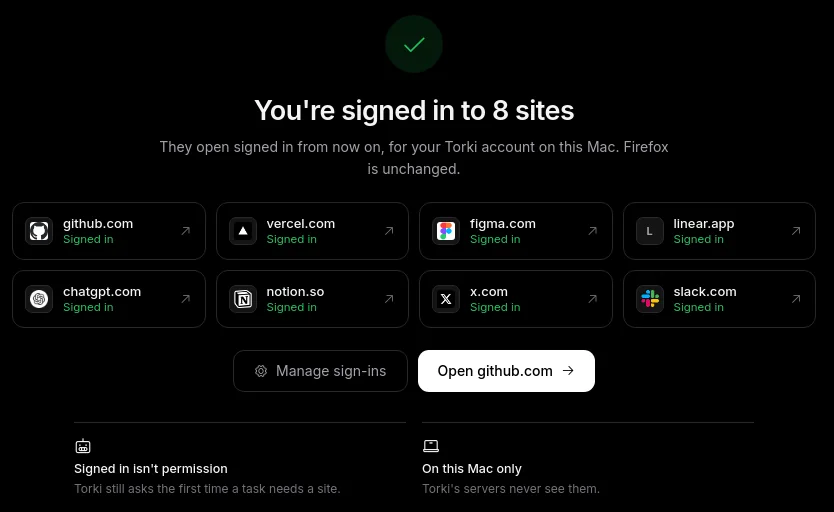
- You see "You're signed in to N sites" with a tile for each. Click a tile, or Open site, to go there. Manage sign-ins opens Settings → Horizon.
- If some cookies could not be copied, a note says how many were skipped.
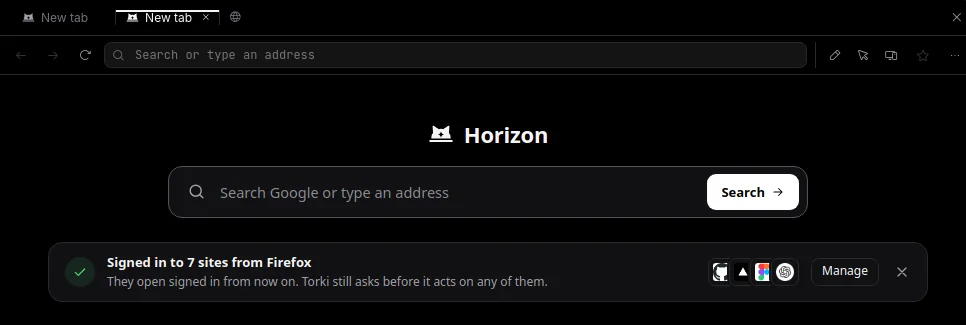
- On the start page the card becomes a single line, for example "Signed in to 8 sites from Firefox", with Manage and an × to close it.
- Pages from those sites show a lock under Recently open, and the site chip in the address bar reads Signed in.
Signed in is not permission. Torki still asks the first time a task needs one of these sites, and it never clicks or types on banking, payments, email or government sites. See Horizon: The Browser Beside Your Work.
Managing your sign-ins
Open Settings → Horizon (or Horizon settings in the ⋯ menu).
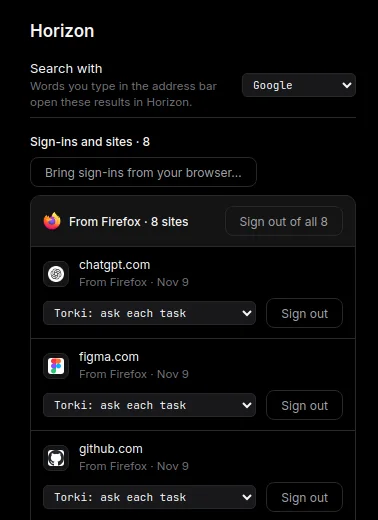
- Sign-ins and sites lists every site you brought over, grouped by browser ("From Firefox · 8 sites"). Each site shows where it came from and when, a menu for what Torki may do there (Torki: ask each task, Torki: read only, Torki: always allowed, Torki: never), and Sign out, which signs you out of that site in Horizon only and sets Torki back to asking there.
- Sign out of all N, on a group, asks first: "Sign out of all 8 sites brought from Firefox? Firefox itself is not changed." Confirm with Sign out of 8.
- Sites where you set Torki's access without importing are listed too, marked "Torki access set by you", with Forget.
- With more than 12 sites there is a search box.
- Bring sign-ins from your browser… imports more, from the same browser or another.
- Clear sign-ins when I sign out of Torki — off unless you turn it on.
- Browsing data → Clear… → Clear everything removes this account's sign-ins, site data, cache and history in Horizon.
You can also sign out of the site you are on with Sign out here in the site popover (click the site chip in the address bar).
If something goes wrong
- "macOS did not allow it" — you chose Deny, or closed the macOS window. Nothing was copied. Press Try again and choose Allow.
- "That browser's key was not found" — the browser may not have saved any sign-ins yet, or it keeps them somewhere macOS does not share.
- "The list could not be read" — quit that browser and try again: some keep the file locked while they run.
- "That profile is gone" — the browser profile was removed. Pick it again.
- "Sign in to Torki first" — sign in to Torki, then try again.
- "Tick at least one site." — on the start-page card, Import needs at least one site switched on.
- "That did not work" — nothing was changed. Try again.
- "No browser with sign-ins was found on this Mac." — none of the supported browsers has a profile on this Mac.
- "This profile is not signed in to any site." — pick another profile.
FAQ
Does this copy my passwords?
No. It copies the cookies that keep you signed in to the sites you tick. Passwords, history and bookmarks stay in your browser.
Does Torki's server see my sign-ins?
No. The import runs on your Mac and writes straight into your account's Horizon on this Mac.
Will it change or sign me out of my other browser?
No. Horizon reads a copy of its files and changes nothing there.
Can another person on this Mac use my sign-ins?
Not through Torki. Each Torki account has its own Horizon, and other accounts on this Mac never see yours.
Why was a site I use not suggested?
Either you have not opened it in the last 30 days (look under All), it is held back (look under Held back), or you are not signed in to it in that browser profile.
Can I import from Safari?
No. macOS does not let other apps read Safari's sign-ins. Sign in to the site in Horizon instead; Horizon keeps that sign-in for your Torki account.
How do I undo it?
Settings → Horizon → Sign out of all N for that browser, or Sign out on one site.