Torki Code
Keyboard Shortcuts and Settings
Overview
This article lists every keyboard shortcut in Torki AI for Mac, the commands in the command palette, and each item in Torki Code's Settings pane, including notifications.
Code's Settings pane is not the same as your Torki account settings. The account menu's Settings item, at the bottom of the sidebar, opens your web account settings in Home. The settings described here are under the gear icon in Code.
What it needs
Torki AI for Mac 1.10.8. The command palette needs you to be signed in. Code's preferences are kept per Mac, not per account.
Get started
1. Open the command palette
Press ⌘⇧P, or choose Shortcuts in the account menu at the bottom of the sidebar. Type to filter, then press Return.
2. Open Code's Settings
Click Code at the top of the sidebar, then the gear icon at the right end of the row of icons. The pane is headed Settings.
3. Change something
A choice takes effect as soon as you pick it. There is no Save button.
Keyboard shortcuts
Anywhere in the window
- ⌘1 — Home
- ⌘2 — Code
- ⌘B — show or hide the sidebar
- ⌘N — a new session on Code; a new chat on Home
- ⌘S — save the current file on Code. On Home it does not save anything; Home's sidebar shows ⌘K for Search.
- ⌘L — light theme for the whole window
- ⌘D — dark theme for the whole window
- ⌘T — a new Horizon tab (switches to Code if needed)
On Code
- ⌘⇧P — command palette
- ⌘P — Go to file
- ⌘O — open a folder
- ⌘⇧F — the Search pane
- ⌘J — show or hide the bottom panel
- ⌃⇧` — a new terminal (Control, not Command)
- ⌘E — back to the chat, with the cursor in the message box
- ⌘W — close the current file or Horizon tab (never the Chat tab)
- Esc — close the topmost pop-up, including the menus under the message box. Only one of those menus is open at a time. If nothing is open and Torki is working, Esc stops the run.
In the message box
- ⏎ — send
- ⇧⏎ — new line
- / as the first character — the list of commands
- @ after a space — mention a file
- 1, 2, 3 while the permission menu is open — Manual, Accept edits, Full auto
In the editor and Source Control
- ⌘Z and ⇧⌘Z — undo and redo, per tab
- Tab — insert two spaces
- ⌘⏎ in the commit box — commit
- Delete or Backspace in the Explorer — delete the selected files, after you confirm
On an approval card
- ⏎ — Approve
- Esc — Deny. While a card is up, Esc means Deny, not stop.
In the tour
- ⏎ or → — next card
- ← — back
- Esc — skip the tour
In the menu bar
- View → Actual Size ⌘0, Zoom In ⌘+, Zoom Out ⌘-
- ⌘Q — quit Torki AI. The red close button only hides the window.
There is no system-wide shortcut to bring Torki up from another app. Use the Dock or the Torki icon in the menu bar.
The command palette
Opened with ⌘⇧P (placeholder "Type a command"). Its commands:
- Open folder… (⌘O)
- New session (⌘N)
- Save file (⌘S)
- New terminal
- Toggle panel (⌘J)
- Toggle sidebar (⌘B)
- Light theme (⌘L) and Dark theme (⌘D)
- Editor theme — steps through the seven themes
- Permission mode: Manual, Permission mode: Accept edits, Permission mode: Full auto
- Show Explorer, Show Search, Show Source Control, Show Problems, Show Output
- Refresh git status
- Switch branch… — the same branch picker as clicking the branch name in the status bar; see Source Control and Git
- Undo a file change… — the list of recent file changes to put back; see Undoing a Change
- Create branch… — name a new branch and switch to it
- Close workspace — the only way to close the open folder without opening another. With unsaved files it offers Save all and close, Close without saving and Cancel.
If nothing matches what you typed: "No command matches." The same palette also serves Go to file (⌘P), Mention a file (@) and Run a command (/); see Specialists, Skills and Project Instructions for the / commands.
Settings
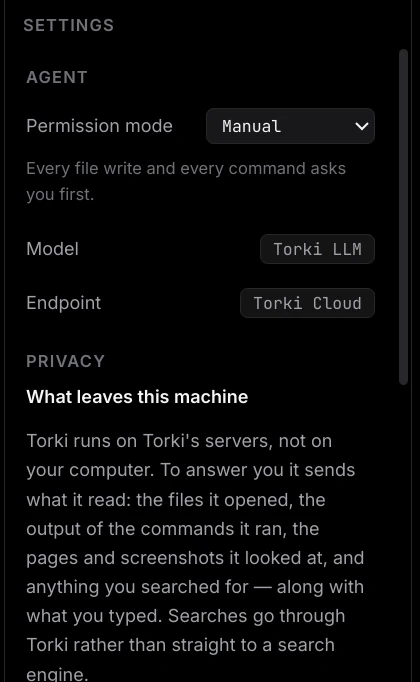
Agent
- Permission mode — Manual, Accept edits or Full auto. The line under it describes the mode you picked; for Manual, "Every file write and every command asks you first." Your choice is remembered across launches. See Permission Modes and Approvals.
- Model — shows "Torki LLM". This is a label, not a choice; pick Pulse, Orbit, Stellar or Cosmos in the message box instead.
- Endpoint — "Torki Cloud" when Torki is reachable, or "not signed in" or "unreachable".
Privacy
"What leaves this machine": a plain statement of what Torki sends to its servers to answer you — what you type, the files it opened, the output of the commands it ran, the pages and screenshots it looked at and anything it searched for — and what stays on your Mac. There is nothing to switch here. See Guarded Mode and Privacy.
Appearance
Theme has seven choices: Follow system, Torki Dark, Midnight, Graphite, Torki Light, Paper and High contrast.
The editor takes the exact theme you pick. The rest of the window, and Home, follow its family — light, dark, or your Mac's setting for Follow system. ⌘L and ⌘D, the moon or sun button at the top right of the window, and the account menu's Theme submenu switch the whole window between light and dark.
Notifications
Notify me:
- Everything — "Told when a run finishes and when Torki needs an answer — only while you are away from it."
- Only when Torki needs you — "Told only when Torki is waiting on you. Finished runs stay quiet."
- Off — "Never told. A run waiting for your approval will wait silently."
Terminal
Start automatically: When a folder opens or Only when I ask. A terminal starts by itself only after you have once ticked "Always open a terminal automatically" on its approval card. See Terminal, Problems and Output.
Getting started
Take the tour again — click Start tour to replay the first-run tour.
One tour card says "Full auto asks about nothing". That is not right. Full auto still asks before adding a dependency, before writing to TORKI.md or the .torki folder, before opening a terminal (until you give it standing consent), before every command on a Mac where commands cannot be confined, and before every command in a project on a server you have not trusted.
Workspace
- Reopen last folder — When Torki starts or Start with no folder. If you quit on Code, Torki opens on Code again once your account has loaded. Only folders on this Mac are reopened; reopen a project on a server from the location chip under the message box (Local, or the server's name).
- Root — the full path of the open folder, or server:path for a project on a server.
- Open folder — type or paste a path, such as
~/projects/my-app, and click Open. Useful when the folder picker is awkward. - Guard — "realpath containment". Read-only: Torki's file tools resolve every path, symlinks included, and refuse anything outside the folder.
- Version — the version you are running. When an update has downloaded, a row with Restart and update… appears below it. There is no "Check for updates" button; the app checks by itself.
- Commands — "confined to this folder" on a Mac, or "not confined — asks first" if confinement is unavailable, in which case every command Torki runs asks, even in Full auto. Read-only. For a project on a server, commands run on the server and are never confined: Full auto asks before each one until you choose Trust this server, and runs them without asking after that. Once you trust a server this row may read "confined to this folder", but nothing confines commands there. See Working on a Project on a Server.
- Terminal consent — "granted" or "not granted", with Revoke when granted.
Notifications on your Mac
Torki sends macOS notifications only when you are not looking at the part of the app concerned, and only as your Notify me setting allows.
- Waiting for you — "Torki wants to write a file", "Torki wants to run a command", "Torki wants to create a folder", "Torki wants to delete something", "Torki wants to move something" or "Torki needs your approval", with the detail underneath. Clicking it opens Code with the card waiting.
- Finished runs — "Torki finished" with the number of steps and the time taken, or "Torki stopped" / "The run was stopped before it finished." Several close together become "N runs finished". Runs shorter than 20 seconds do not notify.
- Updates — "Torki version is ready. It will install the next time you quit."
- Shadow (Home) — "Shadow completed the task" and "Shadow finished browsing".
If nothing appears, check that notifications for Torki AI are allowed in macOS System Settings → Notifications.
Good to know
- Code's preferences — theme, notifications, terminal start, reopen last folder, permission mode — belong to this Mac, not your account. On a shared Mac they are shared.
- Light and dark from ⌘L and ⌘D apply to Home too.
- The Extensions pane is not available.
FAQ
Can I change the keyboard shortcuts?
No. They are fixed in 1.10.8.
Why does ⌘S not save my file?
You are on Home, where ⌘S does not save files and can open Search instead. Switch to Code (⌘2) to save. On Home, the sidebar shows ⌘K for Search.
Where do I choose the model?
In the message box: the mode button (Pulse, Orbit, Stellar or Cosmos) and the effort button (Brief, Balanced or Thorough). Settings only shows which service answers. See Asking Questions and Giving Tasks.
How do I check for an update?
You cannot start a check yourself. Torki checks shortly after launch and every few hours, downloads in the background and shows a card in the sidebar when an update is ready.
I turned notifications off. Will Torki still wait for my approval?
Yes. A run waiting for approval waits silently until you come back and answer the card.