Torki Code
Sessions, History and the Ledger
Overview
Torki Code keeps two records of your work in each project. Sessions are your conversations with Torki, saved after every turn so you can come back to one later. The Ledger is the list of what Torki produced: the files it wrote, the images it generated, the pages it previewed and the commits it made.
Both live on your Mac, per project and per Torki account. They do not sync to torkiai.com, to your phone or to another Mac.
What it needs
Torki AI for Mac 1.10.8, signed in, with a folder open. Sessions and the Ledger are kept per folder. A conversation you have with no folder open is not saved.
Get started
1. Open Sessions
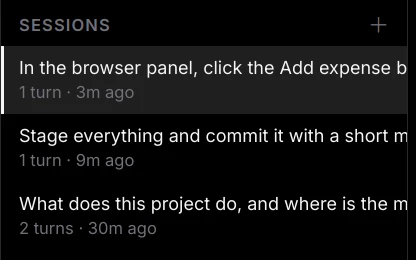
Click the Sessions icon in the sidebar (the speech-bubble icon, fourth in the row). Each row shows the conversation's title, taken from your first question, and how many turns it has and when it was last used, for example "6 turns · 5m ago".
2. Reopen one
Click a row. The conversation is replayed in the chat and you carry on where you left off; new messages are added to that session. A reply you stopped is kept up to the point where you stopped it.
3. Start a fresh one
Click New session (⌘N) at the top of the sidebar, or the + in the Sessions pane, or type /clear in the message box. The previous conversation stays in the list.
Sessions in detail
- Saved after every turn. You never need to save a conversation.
- Per folder. Opening a folder starts a new session and shows that folder's list. Each folder keeps its 40 most recent sessions.
- Per account. On a shared Mac, each Torki account sees only its own sessions.
- What is kept is the text of the conversation and the steps Torki took. Pictures — screenshots and attached images — are not stored with the session. Approvals are not stored either: an Always allow you ticked is not carried with a session, so after Torki restarts a reopened session asks again.
- Where. In
~/Library/Application Support/torki-desktop/on this Mac, one file per folder.
Deleting a session
Point at its row and click the bin icon that appears on the right (Delete session). It is deleted straight away, without a question, and cannot be brought back. Deleting the session you are in also clears the chat.
Starting a new session automatically
A new session also starts when you open another folder and when Torki restarts to install an update. Finished conversations stay in Sessions either way.
Rating a session
After a session has had 8 finished replies, a card may ask "How is Torki doing this session?" with Average, Doing well and Superb. It appears at most once per session and at most once every 3 days. Click × to dismiss it.
A rating sends only the rating, the app version, the number of turns and how many minutes you worked. It never sends the conversation.
The Ledger
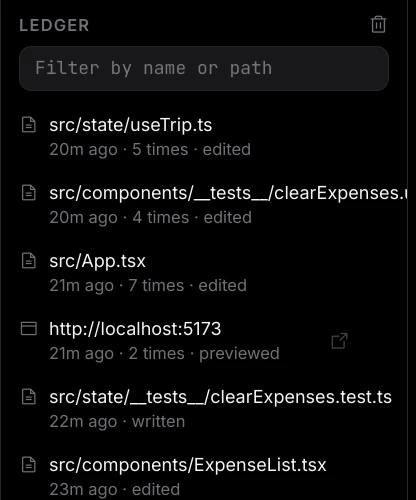
Click the Ledger icon (the stacked-layers icon, fifth in the row). It lists what Torki made in this project, newest first:
- Files it wrote — with how many times, if it wrote one more than once.
- Images it generated — with the description they were made from.
- Pages it previewed — with Open in browser on the row.
- Commits it made.
- Plans and condense records — Torki's plan for a larger task, and the summary it writes when a long conversation is condensed.
Using it
- Type in "Filter by name or path" to narrow the list.
- Click a row to open it: a file in the editor, an image in the image viewer, a plan as a formatted page, a previewed page in Horizon (see Previewing Your App in Horizon). A commit or a condense record shows a short note.
- Forget this (×) removes one row. Forget all of these (the bin at the top) clears the list: "Ledger cleared. The files themselves are untouched."
Forgetting only removes the record. It never deletes, changes or reverts a file or a commit.
Getting a file back
The Ledger only records what Torki made; it cannot undo anything. To put a file back as it was, use Undo a file change.
1. Open the undo list
Click the curved arrow under any of Torki's answers (its tooltip reads "Undo a file change"), or press ⌘⇧P and choose Undo a file change…. The list is the same whichever answer you open it from.
2. Choose the change
The list, "Undo a change to a file (newest first)", has rows such as "Put back the earlier src/App.tsx" (it was overwritten), "Bring back notes.md" (it was deleted) and "Undo moving old.js" (it was moved or renamed), each with how long ago it happened. Type to filter by path. Choose one and you see "Restored path. Undo it again from the same list." It never asks for approval, in any mode.
What it keeps. The last 40 changes in each folder, including your own saves, renames and Explorer deletes, for files (or folders in total) up to 8 MB. A file that was only created has no earlier copy, and changes made by commands or by git are not kept. See Undoing a Change for the details.
3. Use git for anything older
If the project is a git repository and the file was committed, git has the earlier version. Ask Torki "show me what changed in file", look at the diff in Source Control (see Source Control and Git), and either click Discard changes on the file or run git restore path/to/file in the terminal.
4. Commit before a big task
The surest way to be able to go back is a commit just before you ask for a large change. Stage everything and commit in Source Control; afterwards you can see and discard exactly what the task changed.
Good to know
- Sessions, the Ledger and the undo copies stay on this Mac. Signing in on another Mac does not bring them across.
- Your plan usage is shared with Home and the web; the local history of messages, sessions and tokens on the Code welcome screen is for this Mac only.
- For a project on a server, Sessions, the Ledger and the undo list are kept on this Mac, for that server folder. A file you put back with Undo is sent to the server like a save. See Working on a Project on a Server.
- A conversation started in the first seconds after signing in can be missing from Sessions if your sign-in is refreshed at that moment. It is still on disk and nobody else can see it.
FAQ
Where did my conversation go?
Sessions are per folder. Open the folder you were working in, then open Sessions. Conversations held with no folder open are not saved.
Can I see my Code sessions on torkiai.com or my phone?
No. They are stored only on the Mac where you had them.
Does deleting a session undo what Torki did?
No. It removes the conversation only. Files Torki changed stay as they are.
How far back can I undo?
The last 40 file changes in this folder, from the Undo a file change list. For anything earlier, use git.
Does clearing the Ledger delete files?
No. "Ledger cleared. The files themselves are untouched."
Is there an Undo button?
Yes: the curved arrow under each of Torki's answers, or Undo a file change… in the command palette. Asking Torki to "undo your last change" also still works, but it only ever puts back the newest change in the list.